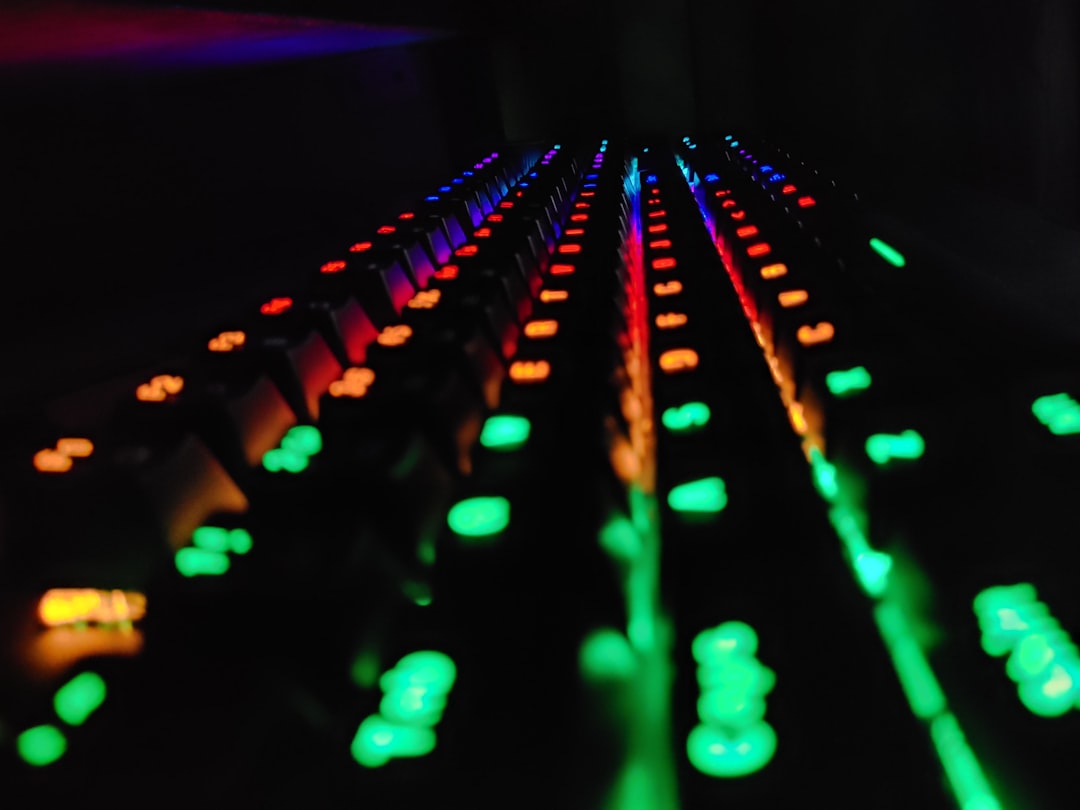
Customizing RGB lighting is one of the most exciting features of the Arzopa K81 keyboard. With the dedicated app, users can adjust colors, effects, brightness, and animation speed to match their setup or mood. Whether the goal is a subtle white glow for productivity or a vibrant rainbow wave for gaming, the app provides flexible control. Understanding where to click and what each option does makes the process smooth and enjoyable.
TL;DR: To change RGB lighting on the Arzopa K81 keyboard, install and open the official app, connect the keyboard, and navigate to the lighting or RGB settings tab. From there, select preset effects or customize individual colors, brightness, and speed. Save the profile to apply changes instantly. Advanced users can create personalized lighting profiles for gaming, work, or aesthetic setups.
Understanding the Arzopa K81 RGB System
The Arzopa K81 features dynamic RGB backlighting that supports multiple effects and customizable color profiles. Through its companion software, users can create anything from static single-color setups to multi-zone animated patterns. The app serves as the control center for:
- Pre-set lighting effects (wave, breathing, ripple, reactive, etc.)
- Static color configurations
- Custom per-key RGB adjustments
- Brightness and speed control
- User profiles and presets
Because lighting preferences vary greatly between gamers, programmers, and office workers, the application is designed to be intuitive while offering deep customization options.
Step 1: Install and Launch the Arzopa K81 App
Before making any lighting changes, the user must ensure the app is properly installed.
- Download the official Arzopa K81 software from the manufacturer’s website.
- Install the application and follow on-screen instructions.
- Connect the keyboard via USB (or ensure wireless mode is properly paired).
- Open the app and confirm the device is recognized.
If the device appears offline, reconnect the cable or restart the software. Proper detection is crucial before RGB options become editable.
Image not found in postmetaStep 2: Navigate to the RGB or Lighting Tab
Once the keyboard is detected, the user should:
- Select the “Lighting” or “RGB” tab in the main dashboard.
- Review the list of available lighting modes.
- Choose between preset effects or custom mode.
Most users begin by experimenting with pre-configured presets, which allow fast switching between modes without manual color selection.
Using Preset RGB Effects
The app includes several ready-made lighting modes. These are ideal for users who want immediate visual impact without deep customization. Common preset categories include:
- Static: A single solid color across all keys.
- Breathing: Fades in and out smoothly.
- Rainbow Wave: Multicolor animation moving across keys.
- Reactive: Keys light up when pressed.
- Ripple: Waves radiate from pressed keys.
After selecting a preset, users can adjust:
- Brightness level
- Animation speed
- Primary color (if applicable)
To apply changes, click “Save” or “Apply”. The keyboard updates immediately.
Creating a Custom RGB Profile
For deeper personalization, the custom mode provides complete control over each key or section.
How to Set Custom Colors:
- Select Custom Mode in the lighting menu.
- Click on individual keys in the on-screen keyboard layout.
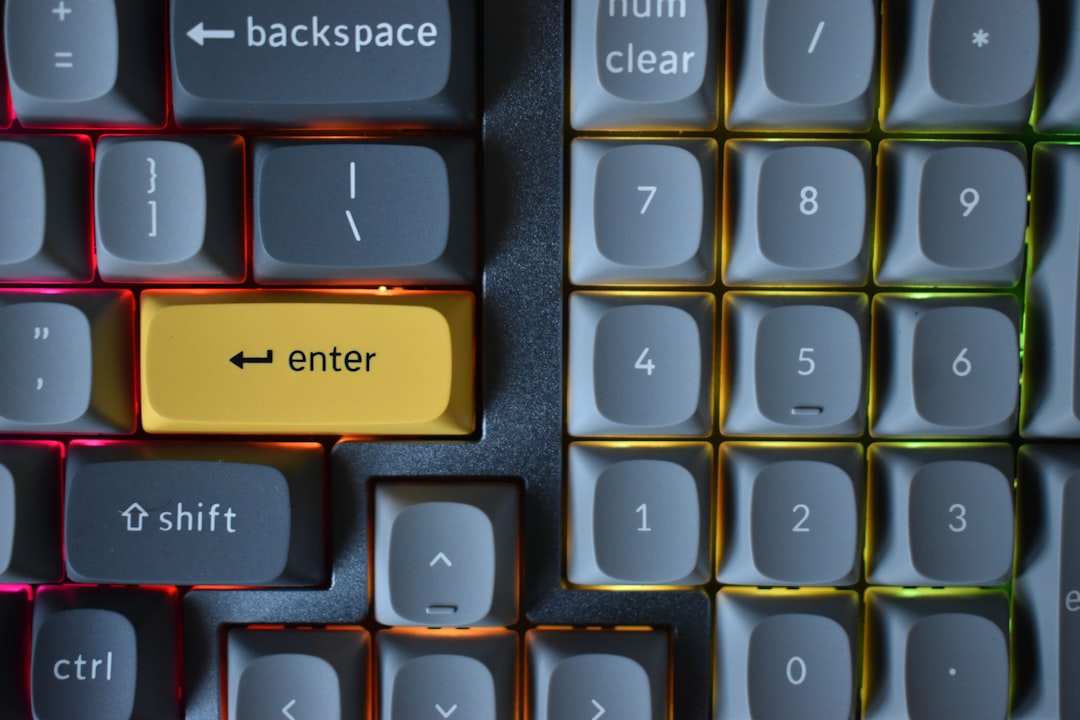
- Choose a color from the RGB color wheel or input specific RGB values.
- Repeat for additional keys or drag across multiple keys to apply the same color.
This feature is especially useful for:
- Highlighting WASD keys for gaming
- Color-coding shortcut keys for editing software
- Creating thematic desk setups
Adjusting Brightness and Speed
The Arzopa K81 app also allows fine-tuning of brightness and animation behavior.
- Brightness Slider: Adjusts intensity from dim to fully illuminated.
- Speed Control: Modifies animation rate for dynamic effects.
- Direction Settings: Available in wave-style modes to reverse movement.
Reducing brightness can extend device longevity and create a more subtle aesthetic, while maximum brightness enhances visibility in darker environments.
Saving and Managing Profiles
Profiles allow users to store specific RGB configurations for different purposes.
How to Save a Profile:
- Complete all lighting adjustments.
- Select “Save Profile”.
- Name the profile (e.g., “Gaming Mode” or “Work Setup”).
- Assign it to a profile slot if multiple are available.
Profiles make it easy to switch themes without recreating settings each time.
Advanced Customization Tips
Experienced users can take advantage of additional customization features:
- Layered effects: Combine reactive keys with background static colors.
- Per-zone lighting: Divide keyboard into color segments.
- Macro-linked lighting: Assign special lighting to macro-triggered keys.
- Import/Export profiles: Share lighting setups across devices.
Using distinct color contrasts can improve typing accuracy and gaming performance by making frequently used keys visually distinct.
Troubleshooting RGB Issues
If RGB changes are not applying correctly, the following checks can resolve most problems:
- Ensure the keyboard firmware is updated.
- Restart the Arzopa K81 app.
- Reconnect the USB cable.
- Disable conflicting RGB software from other devices.
- Reset keyboard to factory defaults.
Firmware updates often improve RGB stability and unlock new preset modes.
Preset vs Custom RGB: Comparison Chart
| Feature | Preset Modes | Custom Mode |
|---|---|---|
| Ease of Use | Very Easy | Moderate |
| Color Flexibility | Limited to predefined settings | Full RGB control |
| Time Required | Instant | Longer setup |
| Per-Key Customization | No | Yes |
| Best For | Quick changes | Personalized themes |
Best Practices for RGB Customization
- Match lighting to environment: Cooler tones suit productivity; vibrant tones enhance gaming.
- Avoid over-saturation: Extremely bright combinations may strain the eyes.
- Use functional coloring: Highlight important keys rather than random colors.
- Create multiple profiles: Separate work and gaming setups.
Thoughtful RGB configuration improves not just aesthetics, but usability as well.
FAQ
1. How do you reset RGB settings on the Arzopa K81?
Users can reset RGB settings either through the app’s reset option or by performing a factory reset using the keyboard’s function key combination (refer to the manual for the exact key sequence).
2. Do RGB changes save without the app running?
Yes. Once saved to the keyboard’s onboard memory, most RGB profiles remain active even when the software is closed.
3. Can you change RGB without the app?
Many Arzopa K81 units include built-in lighting shortcuts that cycle through presets, but full customization typically requires the app.
4. Why is the RGB not responding?
This may occur due to outdated firmware, connection issues, or software conflicts. Updating firmware and restarting the app usually resolves the issue.
5. Can each key have a different RGB color?
Yes. In custom mode, users can assign different RGB values to each individual key.
6. Does RGB impact keyboard performance?
No. RGB lighting affects aesthetics only and does not interfere with typing performance or responsiveness.
7. Is the Arzopa K81 compatible with third-party RGB software?
It is recommended to use the official app for best compatibility and full feature access.
By learning how to navigate the Arzopa K81 app, users gain complete control over their keyboard’s visual identity. Whether opting for subtle illumination or bold animated effects, the RGB system offers a wide range of creative possibilities tailored to any setup.