The Arzopa K81 keyboard is known for its compact layout, responsive keys, and vibrant RGB lighting that enhances both gaming setups and productivity desks. Customizing the lighting is one of the most popular features users explore after setting up the keyboard. Fortunately, changing the RGB effects through the Arzopa K81 keyboard app is a straightforward process once the software is properly installed and configured.
TLDR: To change the RGB on the Arzopa K81 keyboard app, users must first install the official software, connect the keyboard, and navigate to the lighting or RGB section within the app. From there, they can choose preset effects, customize individual keys, adjust brightness and speed, and save profiles. Most lighting changes can be applied instantly, and multiple profiles can be created for different use cases like gaming or work. If issues arise, checking firmware updates and USB connections usually solves them.
Understanding the Arzopa K81 RGB System
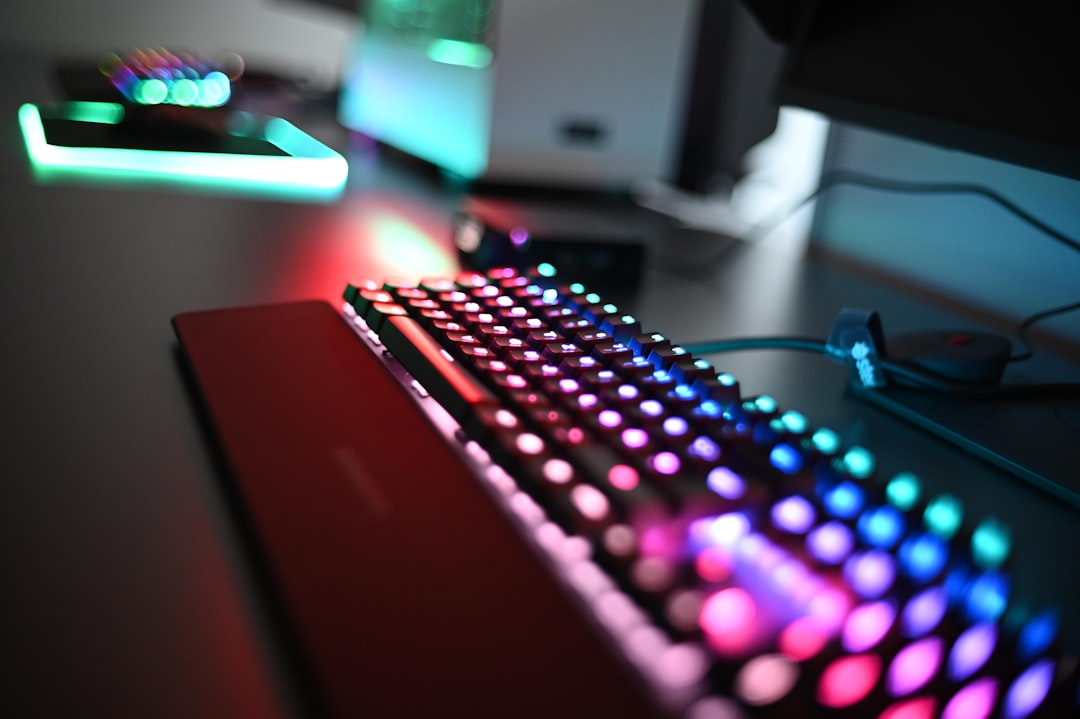
The Arzopa K81 features per-key RGB backlighting, allowing users to personalize every key or apply dynamic lighting modes across the entire keyboard. This flexibility makes it suitable for:
- Gaming setups that require reactive color effects
- Professional workspaces that benefit from subtle, clean lighting
- Creative configurations with custom color zones
The RGB system typically includes:
- Static color modes
- Breathing effects
- Wave or ripple animations
- Music-reactive lighting (on supported firmware)
- Custom per-key programming
To fully unlock these options, the app must be used instead of relying solely on keyboard shortcuts.
Step 1: Install and Launch the Arzopa K81 App
Before adjusting RGB settings, the user should ensure that the correct version of the Arzopa K81 software is installed. This is usually available from the official support page associated with the keyboard.
Installation process:
- Download the latest version of the Arzopa K81 software.
- Install it by following on-screen instructions.
- Restart the computer if prompted.
- Connect the keyboard using the provided USB cable or compatible wireless dongle.
- Open the application.
Once launched, the software should automatically detect the keyboard. If it does not, users should reconnect the device or try a different USB port.
Image not found in postmetaStep 2: Navigating to the RGB or Lighting Section
After opening the app, the main dashboard typically displays several tabs such as:
- Lighting
- Key Mapping
- Macros
- Profiles
To change RGB settings, users should click on the Lighting or RGB Control tab. This section often includes a visual representation of the keyboard layout, making it easy to customize specific keys.
Preset Lighting Modes
The quickest way to change RGB is by selecting one of the built-in modes. These are generally found in a sidebar or drop-down menu.
Common presets include:
- Static – A single solid color
- Breathing – A pulsing fade-in and fade-out effect
- Rainbow Wave – A flowing spectrum effect
- Reactive – Keys light up when pressed
- Ripple – A spreading light effect from pressed keys
After selecting a preset, users can usually adjust:
- Brightness level
- Animation speed
- Direction of movement (for wave effects)
- Color palette
Changes are typically applied in real time, allowing immediate preview.
Step 3: Customizing Individual Keys
One of the most powerful features of the Arzopa K81 app is per-key customization. This allows users to assign different colors to individual keys, which is particularly useful for gamers who want highlighted WASD keys or shortcut clusters.

To customize per-key lighting:
- Select the Custom or Per-Key mode.
- Click on individual keys in the on-screen keyboard layout.
- Choose a color from the color picker or enter a specific RGB value.
- Apply the selection.
Users can drag-select multiple keys to assign the same color to groups, such as:
- Number row
- Function keys
- Arrow keys
- Gaming clusters
This granular control enables unique themes, such as:
- Monochromatic setups (all blue or white)
- Two-tone professional themes
- Bright esports-inspired layouts
Step 4: Adjusting Brightness and Effects
Beyond color selection, the app allows further refinements to improve visual comfort and aesthetics.
Brightness Control
Brightness can typically be adjusted using a slider. This helps:
- Reduce glare in dark rooms
- Match ambient room lighting
- Preserve battery life in wireless mode
Speed Adjustment
For animated modes like wave or breathing effects, animation speed can be slowed or accelerated. Gamers often prefer faster animations, while office users may opt for subtle, slower effects.
Color Saturation and Direction
Advanced settings may allow users to adjust saturation depth or change the direction of wave movement (left to right, right to left, etc.).
Step 5: Creating and Saving Profiles
The Arzopa K81 software typically supports multiple lighting profiles. Profiles are helpful for users who frequently switch between:
- Gaming mode
- Work mode
- Night mode
- Streaming setup
To save a profile:
- Configure lighting settings as desired.
- Navigate to the Profiles section.
- Click Save or Create New Profile.
- Name the profile appropriately.
Some versions of the software allow profiles to be linked to specific applications, meaning the lighting automatically changes when a game or program launches.
Keyboard Shortcuts vs. App Control
The Arzopa K81 may also support onboard shortcuts to change RGB modes without opening the app. However, there are limitations.
| Feature | Keyboard Shortcuts | Arzopa K81 App |
|---|---|---|
| Change Preset Modes | Yes | Yes |
| Adjust Brightness | Yes | Yes |
| Change Animation Speed | Limited | Full Control |
| Per-Key Customization | No | Yes |
| Save Multiple Profiles | Limited | Yes |
While shortcuts are convenient, the app provides significantly more customization options.
Troubleshooting RGB Issues
If RGB changes do not apply correctly, users can try the following steps:
1. Check Connection
- Reconnect the USB cable.
- Switch to a different USB port.
- Ensure wireless dongle is properly inserted (if applicable).
2. Update Firmware
Some lighting issues result from outdated firmware. Checking the Update or Firmware tab in the software may resolve problems.
3. Reset to Factory Settings
The keyboard may support a factory reset using a key combination. This restores default RGB settings and may correct glitches.
4. Reinstall the App
If the software fails to detect the keyboard, uninstalling and reinstalling the latest version can fix compatibility issues.
Tips for Creating a Visually Balanced RGB Setup
When adjusting RGB through the Arzopa K81 app, it helps to follow some design considerations:
- Avoid overly bright color clashes that cause eye strain.
- Match lighting to monitor backlight color temperature.
- Use consistent color themes across other peripherals like mouse and mousepad.
- Dim lighting for nighttime use to reduce fatigue.
For professional environments, neutral tones like white, soft blue, or gentle purple often look more refined than full rainbow effects.
Conclusion
Changing the RGB on the Arzopa K81 keyboard app is a simple yet highly customizable process. By installing the correct software, navigating to the lighting section, selecting presets, or designing per-key layouts, users can dramatically transform the look and feel of their keyboard. The ability to adjust brightness, speed, and color combinations ensures that every setup can be tailored to specific preferences. Whether for gaming, productivity, or aesthetic enhancement, mastering the RGB settings unlocks the keyboard’s full visual potential.
Frequently Asked Questions (FAQ)
1. How do they change the RGB color on the Arzopa K81 without the app?
They can usually use built-in key combinations to cycle through preset lighting modes and adjust brightness. However, per-key customization typically requires the app.
2. Why is the Arzopa K81 app not detecting the keyboard?
This may be due to a loose USB connection, outdated software, incompatible firmware, or the use of a charge-only cable instead of a data cable.
3. Can they customize each key with a different color?
Yes, through the per-key or custom mode in the lighting section of the app, individual keys can be assigned specific colors.
4. Does changing RGB affect performance?
No, RGB adjustments do not impact typing or gaming performance. In wireless mode, extremely bright settings may slightly reduce battery life.
5. How do they reset RGB settings to default?
They can perform a factory reset using the supported key combination or reset lighting settings inside the app by selecting the default profile.
6. Can they create multiple lighting profiles?
Yes, the software supports creating and saving multiple profiles, allowing quick switching between different RGB configurations.