
ARC Raiders has quickly become one of the most anticipated multiplayer extraction shooters of 2026, but for many players, a frustrating issue continues to surface: they simply can’t invite friends. Whether the invite button is grayed out, invitations don’t send, or party members fail to connect, these problems can make team-based gameplay impossible.
TL;DR: If ARC Raiders won’t let players invite friends, the issue usually stems from crossplay settings, Epic Games account syncing, privacy restrictions, NAT type conflicts, server instability, or outdated game files. Adjusting in-game social settings, resetting network configurations, relinking accounts, and verifying game files resolve most cases. Players can follow six practical fixes that have proven effective in 2026. These solutions target both PC and console users across all supported platforms.
Why ARC Raiders Multiplayer Invites Fail
ARC Raiders is built around cooperative squad-based gameplay, meaning social connectivity is essential. However, multiplayer systems rely on several layers, including platform services, game servers, account linking, and network permissions. A failure at any point can prevent party invites from functioning.
The most common symptoms players experience include:
- Invite button not working
- Friends list not loading
- Cross-platform invites failing
- “Join failed” error messages
- Friends appearing offline when they are online
Below are six multiplayer fixes that consistently solve these issues in 2026.
1. Check Crossplay and Social Settings
Crossplay is enabled by default for most players, but mismatched settings can block invites entirely. If one player has crossplay disabled and the other doesn’t, invitations may not appear.

Steps to fix:
- Open Settings in ARC Raiders.
- Navigate to the Gameplay or Online tab.
- Ensure Crossplay is enabled for all party members.
- Restart the game after applying changes.
Players should also verify platform-level privacy settings (PlayStation, Xbox, Steam, or Epic). If invites are restricted to “Friends Only” or disabled entirely, ARC Raiders cannot override that limitation.
Pro Tip: All squad members should align their privacy settings before relaunching the game to avoid syncing conflicts.
2. Relink or Reauthenticate Epic Games Account
ARC Raiders uses Epic Online Services for matchmaking and social functions—even when launched through Steam or consoles. If an Epic account becomes desynced, invites can fail silently.
How to resolve account desync:
- Log out of ARC Raiders completely.
- Visit the Epic Games website and sign out.
- Reconnect platform accounts (Steam, Xbox, PlayStation).
- Launch ARC Raiders and log back in.
Many 2026 players report that simply relinking their platform account refreshes the friend system instantly.
If friends still do not appear, removing and re-adding each other through Epic Friends can force a refresh of the multiplayer cache.
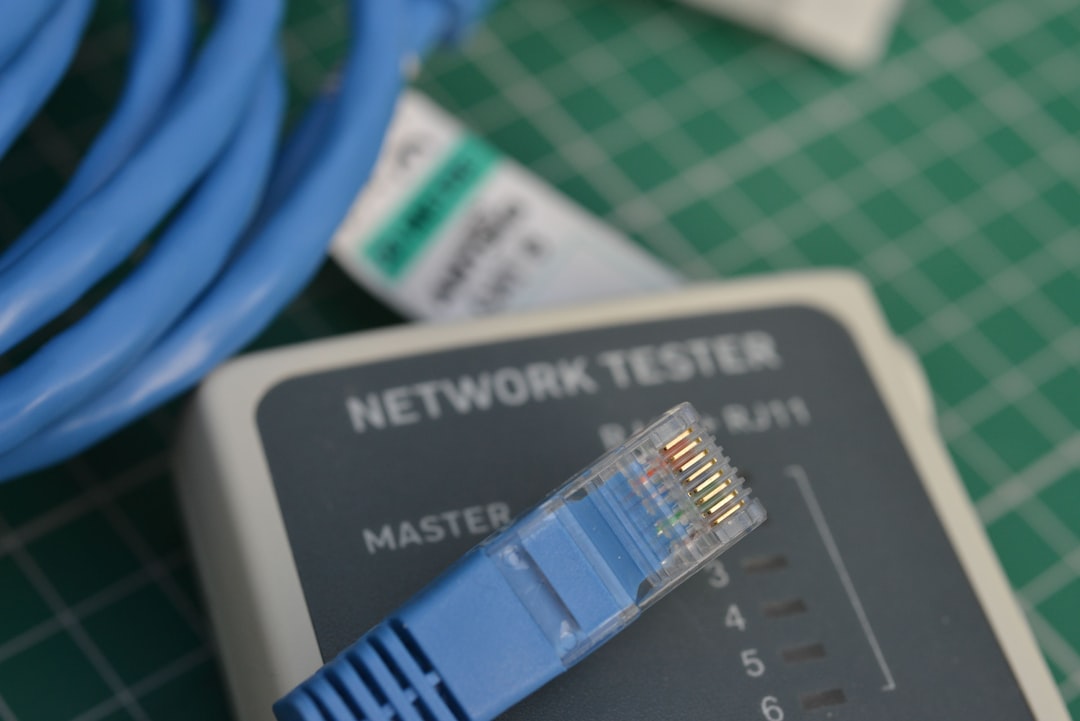
3. Fix NAT Type and Router Issues
Network configuration plays a crucial role in online gaming. A Strict NAT type can prevent peer-to-peer connections, blocking friend invites or party joins.
How to check NAT type:
- On consoles, open Network Settings and view connection status.
- On PC, check router configuration via browser (usually 192.168.1.1).
Ideally, players should have:
- Open NAT (best)
- Moderate NAT (usually works)
- Strict NAT (problematic)
Solutions include:
- Restarting the router.
- Enabling UPnP in router settings.
- Port forwarding necessary game ports.
- Switching from WiFi to wired Ethernet.
In 2026, many routers include automatic gaming optimization modes that simplify this process significantly.
4. Verify Game Files or Reinstall ARC Raiders
Corrupted files are a surprisingly common cause of invite issues. After major updates, some players experience bugs in the social UI or matchmaking backend.
To verify files:
- Steam: Right-click ARC Raiders → Properties → Installed Files → Verify integrity.
- Epic Games: Library → Three dots → Manage → Verify.
- Console: Check for updates or reinstall the game.
If verification does not solve the issue, a full reinstall may clear backend mismatches. This is particularly effective after seasonal updates or hotfix deployments.
Many players report that invite functionality immediately returns after reinstalling, especially when previous patches failed to apply properly.
5. Use Direct Join Instead of Invite
When traditional invites fail, ARC Raiders still allows alternative joining methods.
Workaround options:
- Join through Epic Friends list instead of in-game UI.
- Use platform-level “Join Game” features.
- Enter squad invite codes (if enabled).
Console players in particular have success using the system-level party interface instead of ARC Raiders’ built-in invite button.
This workaround bypasses certain UI bugs that block invitation pop-ups, especially after connection interruptions.
6. Check Server Status and Regional Settings
Sometimes the issue is not on the player’s end at all. ARC Raiders servers may experience outages, maintenance windows, or regional matchmaking restrictions.
Steps to confirm:
- Visit official ARC Raiders social channels.
- Check server status trackers.
- Ensure all players are on compatible server regions.
If players are set to different matchmaking regions (for example, North America vs Europe), party formation may fail. Aligning everyone to the same region often fixes the issue instantly.
During peak events in 2026, matchmaking instability has temporarily disabled party invites. In these cases, waiting for server stabilization is often the only solution.
Additional Tips That Help
Beyond the main fixes, experienced players recommend the following:
- Fully closing the game instead of using sleep mode on consoles.
- Clearing console cache by power cycling.
- Disabling VPNs temporarily.
- Ensuring all party members are on the same game version.
Small mismatches between versions—even minor hotfix differences—can break multiplayer compatibility.
Conclusion
While ARC Raiders is designed as a cooperative experience, multiplayer invite issues remain one of the most common frustrations players face in 2026. Fortunately, these problems are rarely permanent. In most cases, adjusting crossplay settings, relinking Epic accounts, fixing NAT type, verifying files, or checking the server region resolves the issue within minutes.
Because invites rely on multiple systems working together—game servers, Epic services, platform permissions, and home networks—even a small disruption can temporarily block parties from forming. By methodically applying the six proven fixes outlined above, players can quickly return to scavenging, surviving, and fighting ARC machines alongside their squad.
FAQ
Why is the invite button grayed out in ARC Raiders?
The invite button is usually disabled because crossplay is turned off, privacy settings block invites, or the Epic account is not properly connected. Checking these settings typically resolves the issue.
Can players invite friends across different platforms?
Yes, ARC Raiders supports crossplay in 2026. However, all players must have crossplay enabled and properly linked Epic accounts.
Does a strict NAT type prevent invites?
Yes. A strict NAT type can block peer-to-peer connections and prevent party invites or joining. Enabling UPnP or port forwarding usually fixes this.
Are ARC Raiders servers responsible for invite issues?
Sometimes. Server maintenance, high traffic, or regional mismatches can temporarily disable invites or cause join failures.
Do players need an Epic account to play multiplayer?
Yes. ARC Raiders uses Epic Online Services for social features, so players must have a linked Epic account for invites and crossplay.
What is the fastest fix if nothing works?
Fully reinstalling ARC Raiders or reconnecting the Epic account resolves the majority of persistent multiplayer invite problems.