A password protected page in WordPress does more than hide content. It creates a small but important entry point between a visitor and valuable information, whether that content is a private client gallery, member resource, internal document, course preview, event page, or product launch area. When a site owner takes time to customize that page, it can feel secure, polished, and fully aligned with the rest of the brand.
TLDR: A customized WordPress password protected page should combine clear design, consistent branding, and simple user experience. The default WordPress password form works, but it often looks plain and disconnected from the rest of the site. By improving layout, messaging, colors, form styling, accessibility, and mobile responsiveness, a site owner can make restricted content feel professional and trustworthy.
Why Customize a WordPress Password Protected Page?
By default, WordPress provides a basic password protected page feature. A publisher can choose the “Password protected” visibility option, set a password, and restrict access to that page or post. While this is useful, the default front-end experience is usually minimal. It may display a simple message such as “This content is password protected. To view it please enter your password below.”
That message is functional, but it rarely matches a carefully designed website. For businesses, creators, agencies, educators, and membership communities, the password screen is part of the customer journey. If the protected page appears unfinished, visitors may question whether they are in the right place. A more thoughtful design reassures them that the content is intentional, secure, and worth accessing.
Customization also helps reduce confusion. A visitor may not know where the password came from, whether it is case sensitive, or what to do if access fails. A well-designed page can provide guidance without cluttering the experience.
Start with the Purpose of the Protected Content
Before changing colors or layouts, the site owner should identify the purpose of the page. Different types of protected content require different design choices.
- Client portals: These should feel professional, private, and organized.
- Event pages: These can be more visual, with dates, branding, and a welcoming tone.
- Course materials: These should be clear, calm, and easy to use.
- VIP product previews: These may benefit from a polished, premium visual style.
- Internal company documents: These should focus on clarity, security, and quick access.
When the purpose is clear, the design becomes easier. The password form does not need to be flashy; it needs to support the visitor’s expectations.
Keep the Page Consistent with the Website Brand
A password protected page should feel like a natural part of the website. Consistency builds trust, especially when a visitor is asked to enter a password. The page should use the same visual language as the rest of the site, including brand colors, typography, button style, logo placement, and spacing.
For example, if the main website uses soft neutral colors and elegant serif headings, the password page should avoid a generic black-and-white form. If the site uses bold colors and modern geometric layouts, the protected page can carry that same energy in a simpler way.
Essential branding elements include:
- The company or creator logo near the top of the page
- A headline that matches the brand voice
- Brand colors for buttons, borders, and highlights
- Typography that matches the main theme
- A footer or small note that confirms ownership of the page
Write a Clear and Helpful Message
The text above the password field matters. It should explain what the visitor is accessing and what action is required. A vague message may create uncertainty. A helpful message can make the process feel simple.
Instead of relying only on the default WordPress text, the site owner can use language such as:
- “This private resource is available to approved members. Please enter the password provided in the welcome email.”
- “Enter the event access code to view the schedule, speaker details, and downloadable materials.”
- “This gallery is password protected for client privacy. Please use the password sent by the studio.”
The best message is short, specific, and reassuring. It should not over-explain security or make the page feel intimidating. The goal is to help the visitor proceed confidently.
Design the Password Form for Ease of Use
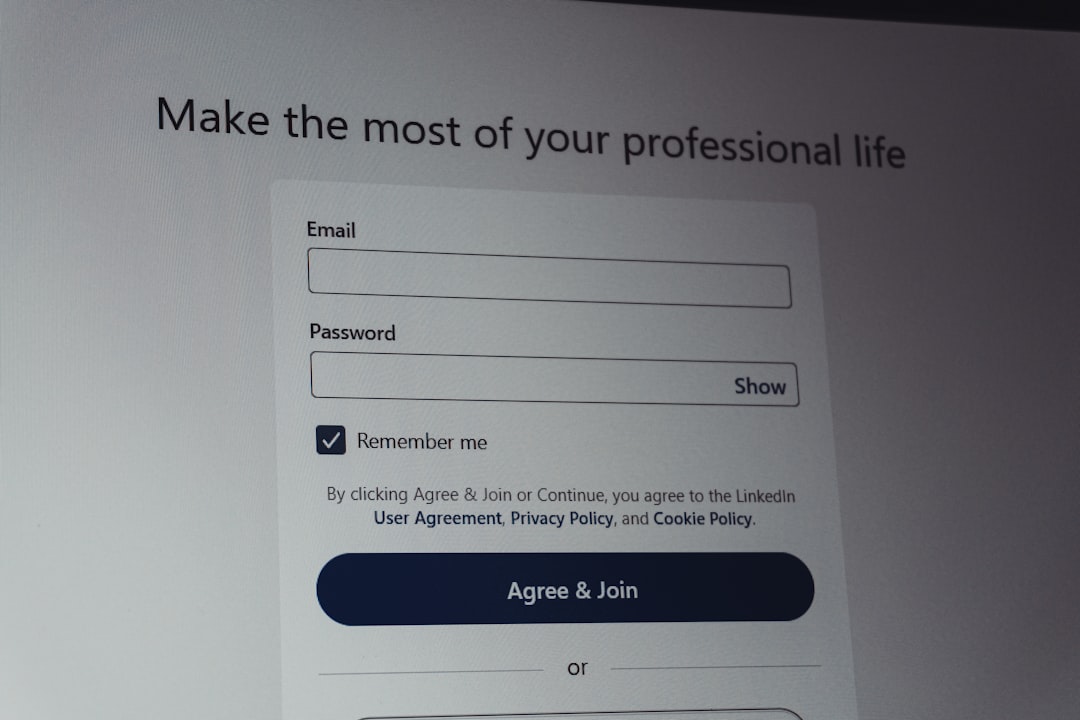
The password form is the main interactive element, so it should be easy to see and use. A common mistake is placing the form too low on the page or styling it so subtly that visitors miss it. The form should have enough contrast, spacing, and visual importance.
Good form design includes:
- A clearly labeled password field
- A large enough input area for mobile and desktop users
- A visible submit button with clear text, such as “Access Page” or “Enter”
- Comfortable spacing around the form
- High contrast between text, fields, and background
Button copy can also affect the experience. The default “Submit” is acceptable, but it is not always friendly. A more contextual label such as “View Content”, “Unlock Resource”, or “Continue” may feel more polished.
Use Layout to Create Focus
A password protected page does not need many distractions. In many cases, the best layout is simple: a centered card, a branded header, a short explanation, and the password field. This keeps the visitor focused on the task.
A card-style layout works especially well because it visually separates the password form from the background. The card can include a white or light background, subtle shadow, rounded corners, and enough padding. For a more premium feel, a site owner may use a full-screen background image with a dark overlay and a centered access panel.
However, visual style should never reduce readability. A background image should not make the form difficult to read. If imagery is used, an overlay or solid content box can help maintain contrast.
Match the Experience to the Audience
Different audiences have different expectations. A corporate audience may expect a clean and formal page. A photography client may expect a beautiful, emotional presentation. A student may need a simple and direct interface that helps them reach course materials quickly.
The tone should match the relationship between the site and visitor. For example, a private coaching portal can sound warm and encouraging, while a legal document portal should sound precise and professional. The password page is not just a technical barrier; it is part of the brand conversation.
Improve Error Messages and Recovery Guidance
One of the most overlooked parts of password protected page customization is the error state. If a visitor enters the wrong password, WordPress may simply reload or show a basic error depending on the theme or customization. A better experience gives the visitor helpful next steps.
An improved error message might say:
“The password entered does not match this page. Please check for extra spaces or confirm the password from the original email.”
If appropriate, the page can include a support link or contact instruction. For example, a client portal might include: “Need help? Contact the project manager listed in your onboarding email.” This avoids frustration and reduces support requests.
Make the Page Mobile Friendly
Many visitors will open protected links from email, chat apps, or mobile browsers. If the password page is not mobile friendly, access becomes frustrating. A responsive layout is essential.
On mobile, the form should be easy to tap, the text should remain readable, and the button should not be too small. The page should avoid large images that push the form far below the fold. If a full-screen background is used, the layout should still load quickly and keep the password field visible.
Mobile-friendly details to check include:
- Input fields at least comfortable thumb-tap size
- Readable font sizes without zooming
- Short paragraphs and simple instructions
- Fast loading background images
- No overlapping elements on narrow screens
Consider Accessibility from the Start
Accessibility improves the experience for all users. A password protected page should be usable with keyboard navigation, screen readers, and different display settings. Good accessibility also signals professionalism and care.
The password input should have a proper label, not just placeholder text. Placeholder text can disappear once a visitor starts typing, which can be confusing. The button should have clear text, and color should not be the only way to communicate errors.
Strong contrast is especially important. Light gray text on a white background may look elegant, but it can be difficult to read. A password page should prioritize legibility over decoration.
Add Trust Signals Without Overcrowding
A visitor entering a password should feel that the page is legitimate. Small trust signals can help. These may include the brand logo, a short privacy note, a secure connection indicator through HTTPS, or a sentence explaining why the content is protected.
For instance, a private gallery page might say: “This area is protected to preserve client privacy.” A member resource page might say: “Access is limited to registered members.” These details give context and make the restriction feel intentional rather than confusing.
At the same time, the page should not be overloaded with badges, long disclaimers, or unnecessary warnings. A password protected WordPress page is usually not the same as a full login system. It should remain simple.
Use Visual Hierarchy to Guide the Visitor
Visual hierarchy determines what the visitor sees first, second, and third. On a password protected page, the sequence should usually be:
- Brand identity: The visitor confirms that they are in the right place.
- Page purpose: The headline explains what content is protected.
- Instruction: The text explains what password to use.
- Action: The form allows access.
- Support: A small note explains what to do if access fails.
This hierarchy prevents confusion. If the support note appears before the password form, or if the headline is too vague, the visitor may hesitate. A clean order makes the page feel effortless.

Do Not Overcomplicate the Security Message
Password protected pages in WordPress are useful for lightweight content restriction, but they are not always suitable for highly sensitive data. The site owner should avoid making unrealistic security claims. Instead, the page can communicate privacy in a measured way.
For highly confidential information, a more advanced membership system, user login, two-factor authentication, or secure document platform may be more appropriate. For general private pages, client previews, member downloads, and limited-access resources, the built-in password feature can work well when combined with thoughtful design.
Customization Methods in WordPress
There are several ways to customize a WordPress password protected page. The right method depends on the theme, technical comfort level, and desired level of control.
- Theme customizer or site editor: Some themes allow styling changes to forms, buttons, and page templates.
- Page builders: A page builder may provide layout control, although protected content behavior can vary.
- Custom CSS: CSS can adjust form spacing, colors, borders, button design, and typography.
- Template editing: Developers can modify theme files or block templates for deeper customization.
- Plugins: Some plugins extend password page design options, add custom messages, or improve access workflows.
Before making changes, a site owner should test the page in a staging environment or use a child theme if editing theme files. This helps prevent updates from overwriting custom work.
Branding Details That Make a Difference
Small details can make a password protected page feel more refined. The button hover state, form border radius, background texture, icon style, and spacing all contribute to the overall impression.
A luxury brand might use generous spacing, muted colors, and elegant typography. A technology company might use a minimal layout with sharp contrast and concise copy. A children’s education platform might use friendly colors and warm messaging. The design should never feel random; it should reflect the brand’s personality.
Even the password field label can be branded. Instead of a plain “Password”, the page may say “Access Code”, “Member Password”, or “Client Gallery Password”, depending on the context.
Test the Complete User Journey
Customization is incomplete without testing. The site owner should test the password protected page as a visitor would experience it. This means opening the page in a private browser window, entering the correct password, entering an incorrect password, checking the page on mobile, and confirming that the protected content displays as expected.
It is also useful to test the link from the original source, such as an email campaign, client message, or member dashboard. If visitors receive the password in an email, the instructions in the email should match the instructions on the page.
A simple testing checklist includes:
- Correct password grants access
- Incorrect password shows useful feedback
- Design matches the main website
- Page works on mobile and desktop
- Form is accessible by keyboard
- Support instructions are easy to find
- Loading speed remains acceptable
Final Thoughts
A customized password protected page in WordPress can turn a plain access form into a polished brand experience. It does not need to be complex, but it should be intentional. With clear messaging, consistent visuals, accessible form design, mobile responsiveness, and helpful error guidance, the page can feel professional and easy to use.
When a site owner treats the password page as part of the full visitor journey, restricted content becomes more inviting and trustworthy. The result is a better first impression, fewer access problems, and a stronger connection between the brand and its audience.
FAQ
Can a WordPress password protected page be customized?
Yes. A WordPress password protected page can be customized through theme settings, custom CSS, page templates, plugins, or developer edits. The level of customization depends on the theme and tools being used.
Is the default WordPress password protection secure?
It is suitable for basic content restriction, such as private resources, previews, or client pages. For highly sensitive information, a more advanced login or membership system may be more appropriate.
What should be included on a password protected page?
A good page should include a logo, clear headline, short instruction, password field, visible access button, and a small support note for visitors who need help.
How can branding improve the password page experience?
Branding helps visitors recognize that they are in the right place. Consistent colors, fonts, button styles, and messaging make the page feel trustworthy and professional.
Should the password form be mobile friendly?
Yes. Many visitors access protected links from mobile devices. The form should be easy to tap, readable without zooming, and visible without excessive scrolling.
Can the default password message be changed?
Yes. The message can often be changed with theme customization, code snippets, template edits, or plugins. A custom message is usually better because it can explain exactly what the visitor should do.
What is the best button text for a password protected page?
Clear action text works best. Options such as “Access Page”, “View Content”, “Unlock Resource”, or “Continue” are often more helpful than a generic “Submit”.