When macOS stops a copy or move operation with Error -36, it can feel abrupt and difficult to interpret. The message often appears in Finder during file transfers to an external drive, USB stick, network share, memory card, or another folder, usually saying that “some data can’t be read or written.” Although the wording is vague, the error usually points to a problem with file metadata, disk formatting, storage reliability, permissions, or the way macOS is communicating with the destination.
TLDR: macOS Error -36 usually means Finder cannot properly read from the source or write to the destination during a file transfer. It is commonly linked to hidden metadata files, external drive formatting, damaged files, bad sectors, or network share issues. In many cases, running dot_clean, checking the drive with Disk Utility, or copying the files in smaller batches will resolve the problem. If the error repeats on the same drive, treat it as a possible warning sign of storage failure and back up important data immediately.
What Error -36 Means in macOS
Error -36 is a classic macOS input/output error. In practical terms, it means the system attempted to read or write data and something in that process failed. The failure may involve the actual contents of the file, but it may also involve metadata, such as file attributes, resource forks, extended attributes, or hidden companion files that macOS creates automatically.
This is why Error -36 can be confusing: the file may look perfectly normal, open correctly, and even copy to some locations, yet still fail when moved to a particular external drive or network destination. The problem is not always the visible file itself. It may be the filesystem, the transfer method, or hidden data associated with the file.

Common Situations Where Error -36 Appears
Users most often encounter Error -36 during tasks such as:
- Copying files from a Mac to an external hard drive or USB flash drive
- Moving photos or videos from an SD card or camera card
- Transferring folders to a NAS, Windows file share, or SMB server
- Copying old files from archived backups or older Mac volumes
- Moving folders that contain many small files, hidden files, or package-style app data
- Working with drives formatted as FAT32, exFAT, NTFS, or older Mac filesystems
The error often appears midway through a transfer rather than immediately. That usually means macOS successfully copied some files, then encountered one specific item or metadata record it could not process.
The Role of Hidden Dot Underscore Files
One of the most well-known causes of Error -36 is the presence of hidden files that begin with ._, sometimes called dot underscore files. These files are created by macOS to store resource fork and extended attribute information when files are placed on filesystems that do not fully support the native metadata used by macOS.
For example, if you copy a file named Report.pdf to a FAT32 or SMB volume, macOS may also create a hidden companion file named ._Report.pdf. Most of the time, this is harmless. However, if those hidden files become corrupted, inconsistent, or unreadable, Finder may stop the transfer and display Error -36.
This is why the error is particularly common when copying files from older external drives, shared Windows folders, or storage devices that have been used across different operating systems.
Using dot_clean to Fix Metadata Problems
macOS includes a Terminal command called dot_clean, which can merge or remove problematic dot underscore metadata files. It is one of the most commonly recommended fixes for Error -36.
To use it, open Terminal and type:
dot_clean /path/to/folderA simple way to avoid typing the full path is to type dot_clean, add a space, then drag the affected folder into the Terminal window. macOS will automatically insert the correct path. Press Return to run the command.
For example:
dot_clean /Users/yourname/Desktop/TransferFolderAfter the command finishes, try the file transfer again. If metadata corruption was the cause, the copy may now complete normally.
Important: Use dot_clean on the folder you are trying to copy, not randomly across important system folders. It is generally safe when used correctly, but it is still a file maintenance command and should be applied deliberately.
External Drive Formatting Can Trigger the Error
Another frequent cause is an external drive formatted in a way that does not fully align with macOS expectations. Drives formatted as FAT32 or exFAT are widely compatible with Windows and macOS, but they do not support all macOS file features in the same way as APFS or Mac OS Extended.
FAT32 also has a file size limit of 4 GB, which can cause separate transfer errors when copying large videos, disk images, or archives. exFAT supports larger files, but it can still be more vulnerable to corruption if a drive is disconnected without being properly ejected.
If the external drive is used only with Macs, formatting it as APFS is usually the best modern option. For older Macs, Mac OS Extended Journaled may be more appropriate. If the drive must be shared with Windows computers, exFAT is common, but users should be especially careful to eject it properly and maintain backups.
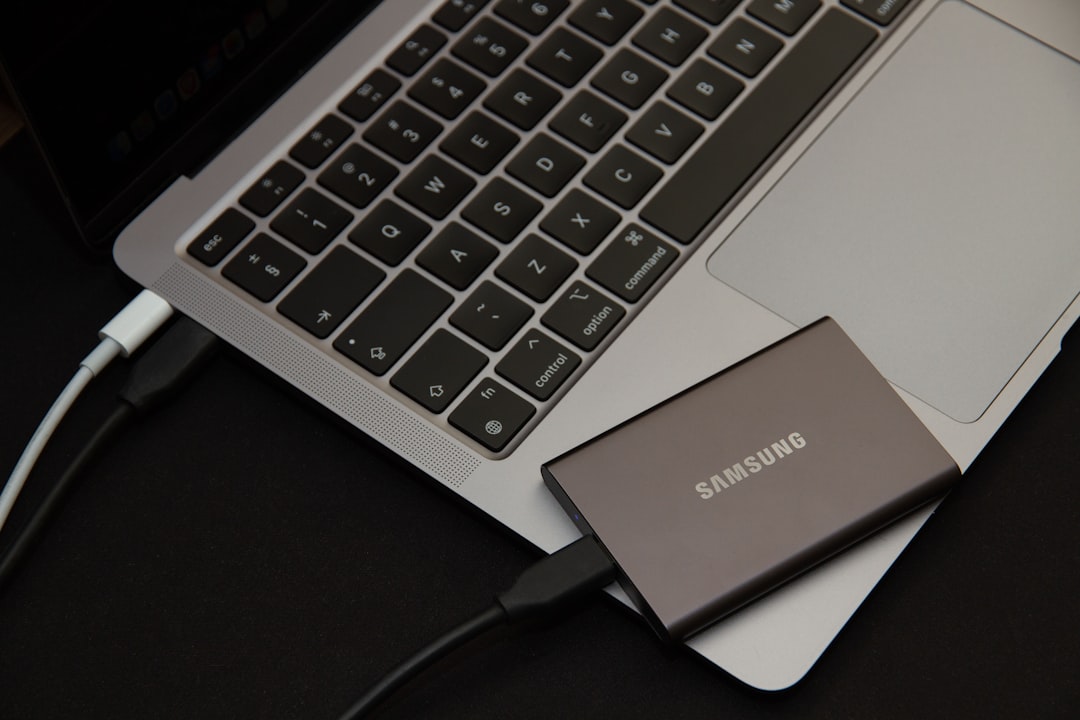
Disk Errors and Bad Sectors
Error -36 can also indicate a genuine storage problem. If a file resides on a damaged part of a disk, macOS may fail when trying to read it. Similarly, if the destination drive has physical or logical errors, Finder may fail when trying to write the file.
This is especially important when the error appears repeatedly on the same drive, affects different files, or is accompanied by slow performance, disconnections, clicking noises, or repeated prompts to repair the disk.
To check a drive, use Disk Utility:
- Open Disk Utility from Applications > Utilities.
- Select the affected drive or volume in the sidebar.
- Click First Aid.
- Allow macOS to check and repair the volume if possible.
First Aid can fix many filesystem issues, but it cannot repair physical damage. If First Aid reports serious errors, or if the drive repeatedly fails checks, back up your data and consider replacing the device.
Network Transfers and SMB Problems
Error -36 is not limited to USB or external drives. It may also occur when copying files to or from a NAS, Windows server, shared Mac, or other network location. Network file transfers involve more variables: connection stability, server permissions, filename compatibility, SMB protocol behavior, file locks, and differences in metadata handling.
Common network-related causes include:
- Temporary Wi-Fi interruptions during large transfers
- Unsupported characters in filenames
- Permission conflicts on the destination folder
- NAS firmware bugs or SMB compatibility issues
- Files being open or locked by another user or process
When working over a network, try copying the same files in smaller batches. If the error appears on one file or folder, rename it using simple characters and try again. Avoid slashes, colons, unusual symbols, trailing spaces, and extremely long filenames. If possible, test with a wired Ethernet connection to rule out wireless instability.
Permissions and Locked Files
Sometimes macOS cannot complete a transfer because the current user does not have proper permission to read the source file or write to the destination. This is more likely when files come from another Mac account, an old backup, a corporate server, or a restored drive.
To inspect permissions, select the file or folder in Finder, choose File > Get Info, and review the Sharing & Permissions section. Make sure your user account has the necessary read and write access. Also check whether the item is marked as Locked.
If the destination is an external drive, also check the ownership setting in the drive’s Get Info window. For some non-system external drives, enabling Ignore ownership on this volume can help avoid permission conflicts. However, this option should be used carefully and is not appropriate for every environment, especially shared or security-sensitive systems.
Damaged Files or Problematic Folders
In some cases, the error follows one specific file wherever it goes. If every transfer fails at the same item, that file may be damaged. Large media files, old archives, incomplete downloads, and files recovered from failing disks are common examples.
A practical troubleshooting method is to copy files in smaller groups. If a folder contains hundreds of items, copy half of them first. If that succeeds, copy the other half. Continue narrowing the selection until you identify the file causing the error.
Once identified, try the following:
- Open the file to confirm it is readable.
- Rename the file using a simple name.
- Compress the file into a ZIP archive and copy the archive.
- Duplicate the file locally, then copy the duplicate.
- Use Terminal commands such as
cporrsyncfor a more controlled transfer.
If the file cannot be opened, duplicated, compressed, or copied by any method, it may be corrupted beyond normal repair.
Finder Versus Terminal Transfers
Finder is convenient, but it may stop an entire operation when it encounters a problematic file. Terminal tools can sometimes provide better error output and more resilience.
For example, rsync can copy folders while showing which file caused the failure:
rsync -avh /source/folder/ /destination/folder/This can be useful when Finder only displays the general Error -36 message without identifying the exact file. Terminal transfers are not magic, and they cannot fix a failing disk, but they can make diagnosis more precise.

How to Reduce the Chance of Error -36
While not every occurrence is preventable, good storage habits significantly reduce the risk:
- Eject external drives properly before unplugging them.
- Keep reliable backups, especially before moving large archives.
- Use APFS for Mac-only external SSDs and modern drives.
- Avoid unstable connections during large network transfers.
- Keep filenames simple when transferring between macOS, Windows, NAS devices, and cloud-synced folders.
- Run Disk Utility First Aid if a drive begins behaving unusually.
- Do not ignore repeated errors, especially on older hard drives or frequently disconnected USB devices.
When to Be Concerned
A single Error -36 during a transfer may be a minor metadata issue. However, repeated errors deserve serious attention. If the same external drive causes transfer failures across multiple folders, or if First Aid reports errors it cannot repair, the safest assumption is that the drive may be unreliable.
At that point, stop using the drive for new data, copy important files off it as soon as possible, and avoid unnecessary repair attempts until critical data is backed up. If the data is valuable and the drive appears physically damaged, professional recovery may be safer than repeated home troubleshooting.
Conclusion
macOS Error -36 is frustrating because it hides several possible causes behind one short message. In many cases, it is caused by hidden metadata files and can be resolved with dot_clean. In other cases, it points to formatting limitations, permission problems, network transfer conflicts, corrupted files, or failing storage hardware.
The most reliable approach is to troubleshoot methodically: identify whether the problem follows a specific file, folder, drive, or network location; run Disk Utility First Aid; clean metadata when appropriate; and copy files in smaller batches. Above all, treat repeated Error -36 messages as a reason to verify your backups. A failed transfer is inconvenient, but lost data can be far more serious.