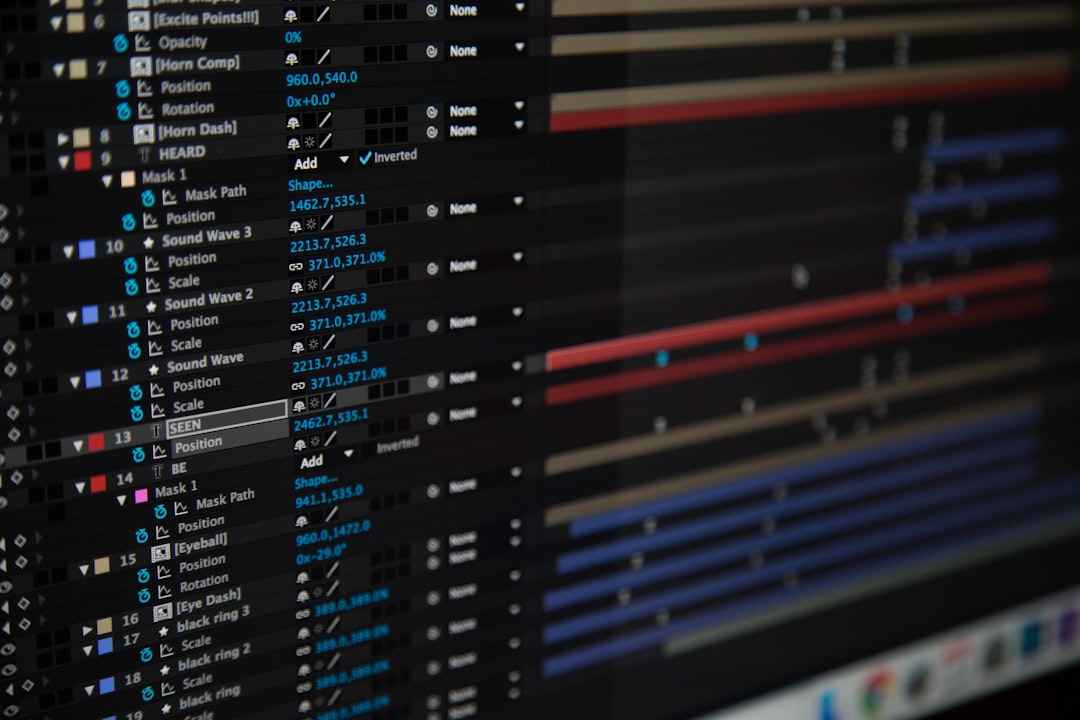
Starting with After Effects can feel exciting. And overwhelming. Buttons everywhere. Panels stacked on panels. Timelines that seem to go on forever. Don’t worry. Every motion designer has been there. The good news? Most beginner mistakes are common. And fixable.
TLDR: Beginners often make five big mistakes in After Effects: ignoring project organization, misusing keyframes, overloading effects, forgetting about composition settings, and skipping rendering best practices. These issues slow you down and hurt quality. The fix is simple habits and smarter workflows. Learn them early and you’ll save hours of frustration.
Let’s break down the five biggest mistakes. And how to avoid them.
1. Messy Project Organization
You import files. You start animating. You forget to rename layers. Soon your project panel looks like a junk drawer.
Layer 1. Layer 2. Final_v2_REAL_final.psd.
Sound familiar?
This is one of the most common beginner mistakes. And it causes big problems later. Especially in complex projects.
Why it’s a problem:
- You waste time searching for files.
- You edit the wrong layer by accident.
- Collaboration becomes a nightmare.
- Rendering errors are harder to fix.
How to avoid it:
- Create folders in the Project panel. For example:
- Footage
- Audio
- Precomps
- Images
- Rename layers immediately. Double click the name. Be specific.
- Color-label important layers. Right-click > Label.
- Pre-compose logically. Group related animations together.
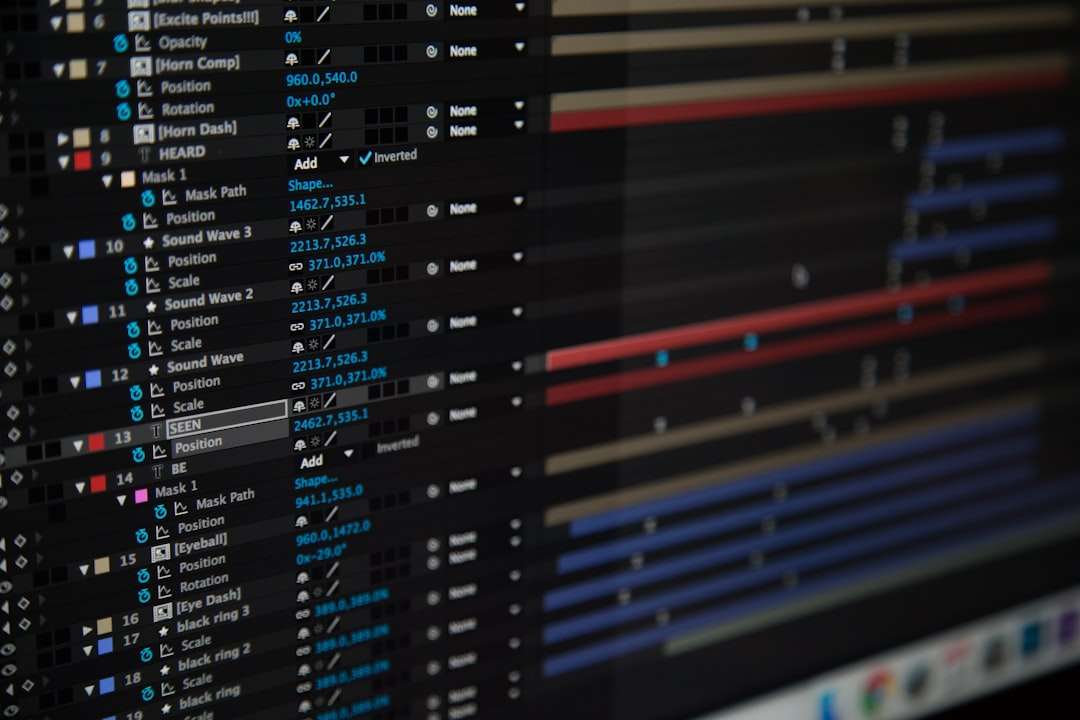
Think of your project like a kitchen. You can cook in chaos. But it’s slower. And stressful. A clean setup makes everything easier.
Build good habits early. Your future self will thank you.
2. Bad Keyframe Habits
Keyframes are the heart of After Effects. But beginners often treat them like simple on-off switches.
They set two keyframes. Hit play. Done.
The result? Robotic. Stiff. Unnatural.
Common keyframe mistakes:
- Not using Easy Ease.
- Ignoring the Graph Editor.
- Animating everything linearly.
- Adding too many unnecessary keyframes.
Real motion has acceleration and deceleration. Things speed up. Then slow down. Movement breathes.
How to fix it:
- Select keyframes and press F9 for Easy Ease.
- Open the Graph Editor. Adjust curves.
- Use the Speed Graph for smoother motion.
- Keep it simple. Two well-shaped keyframes are better than ten messy ones.

Here’s a quick comparison:
| Linear Keyframes | Easy Ease Keyframes |
|---|---|
| Robotic motion | Smooth natural motion |
| Constant speed | Gradual acceleration and deceleration |
| Feels basic | Feels professional |
The Graph Editor looks scary at first. It’s not. It’s just a visual way to control timing. Spend time here. This is where animation becomes art.
3. Overusing Effects and Plugins
Effects are fun. Glow. Blur. Distort. Particles. Transitions. It’s tempting to use everything.
But more effects don’t mean better design.
What beginners do:
- Add heavy glow to everything.
- Stack multiple color corrections randomly.
- Use flashy transitions on every cut.
- Install tons of plugins without understanding basics.
The result? A messy, slow, sometimes crashing project.
Why this happens:
Effects feel like shortcuts. They make things look “cool” fast. But strong animation is about timing, spacing, and composition first. Effects come later.
How to avoid this mistake:
- Ask: Does this effect support the message?
- Use fewer effects. Increase subtlety.
- Master built-in tools before installing plugins.
- Pre-render heavy layers to improve performance.
Here’s a comparison of common beginner tool use:
| Tool | Beginner Mistake | Better Approach |
|---|---|---|
| Glow | Very high intensity | Low intensity, larger radius |
| Motion Blur | Left off completely | Enabled for fast movement |
| Color Correction | Multiple random effects | One or two controlled adjustments |
| Transitions | Different effect each cut | Consistent style |
Remember: clean beats flashy. Always.
4. Ignoring Composition Settings
This one surprises many beginners.
You finish a project. It looks great.
Then you export it. The resolution is wrong. Frame rate feels weird. Or it has black bars.
This happens because composition settings were ignored at the start.
Important composition settings:
- Resolution (1920×1080? 4K?)
- Frame rate (24fps? 30fps? 60fps?)
- Duration
- Background color
Common beginner problems:
- Using wrong frame rate for social media.
- Mixing different frame rates in one project.
- Forgetting to adjust duration.
- Designing without safe margins for text.
How to avoid it:
- Ask the client or platform for required specs first.
- Set composition correctly before animating.
- Match footage frame rate when possible.
- Use Title/Action Safe guides.
Changing settings later can mess up timing. So get it right at the beginning.
Think before you animate.
5. Poor Rendering and Export Habits
You finish your masterpiece. Now what?
Many beginners just hit “Render” without checking settings.
Big mistake.
Common export mistakes:
- Rendering at maximum quality when not needed.
- Using wrong format for delivery.
- Huge file sizes.
- Forgetting to check audio settings.
After Effects gives you options. Lots of them. That doesn’t mean you should click randomly.
Basic export advice:
- Use Adobe Media Encoder for most exports.
- Select H.264 for web and social media.
- Double-check resolution and bitrate.
- Watch the exported file before sending it.
Here’s a quick comparison:
| Export Method | Best For | File Size | Speed |
|---|---|---|---|
| After Effects Render Queue | High quality masters | Large | Slower |
| Adobe Media Encoder H264 | Web and social media | Medium to small | Faster |
Also: save your project before rendering. Always.
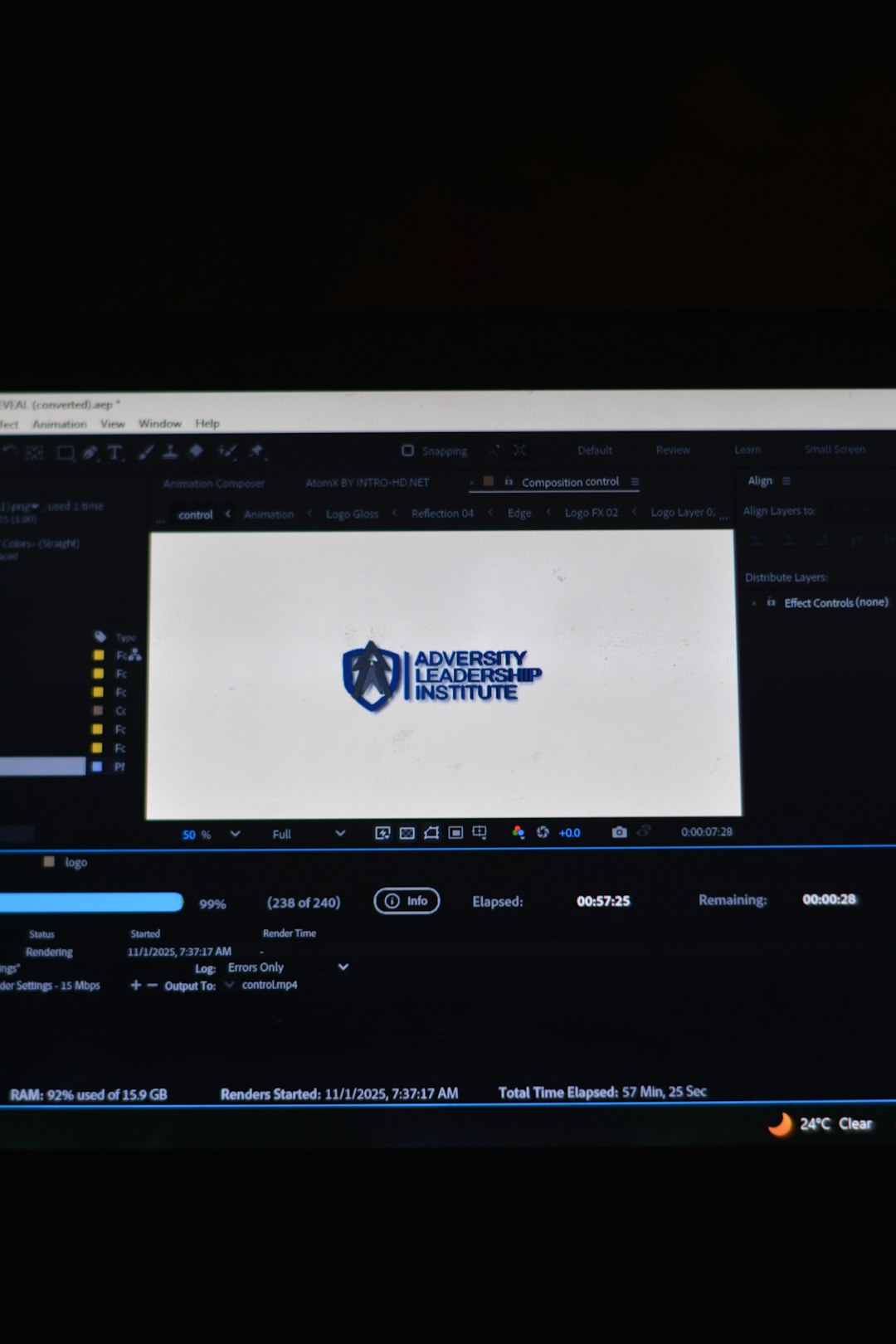
Nothing hurts more than a crash at 99%.
Bonus Tips for Faster Improvement
Now that you know the five big mistakes, here are extra tips to grow faster:
- Learn shortcuts. They save hours.
- Use motion references. Study real life movement.
- Keep projects simple. Complexity comes later.
- Practice small animations daily. Even 10 seconds helps.
After Effects is deep. Very deep. You don’t need to learn everything at once.
Focus on:
- Clean organization
- Smooth keyframes
- Purposeful effects
- Correct composition settings
- Smart exports
Master these basics. You will already be ahead of many beginners.
Final Thoughts
Everyone makes mistakes at the start. That’s normal. What matters is building smart habits early.
After Effects is powerful. But power without control leads to chaos.
Keep things clean. Keep motion smooth. Keep effects intentional.
Simple projects done well look better than complicated projects done poorly.
And remember: animation is about communication. Not showing off every feature in the software.
Start small. Improve daily. And most importantly—have fun creating.