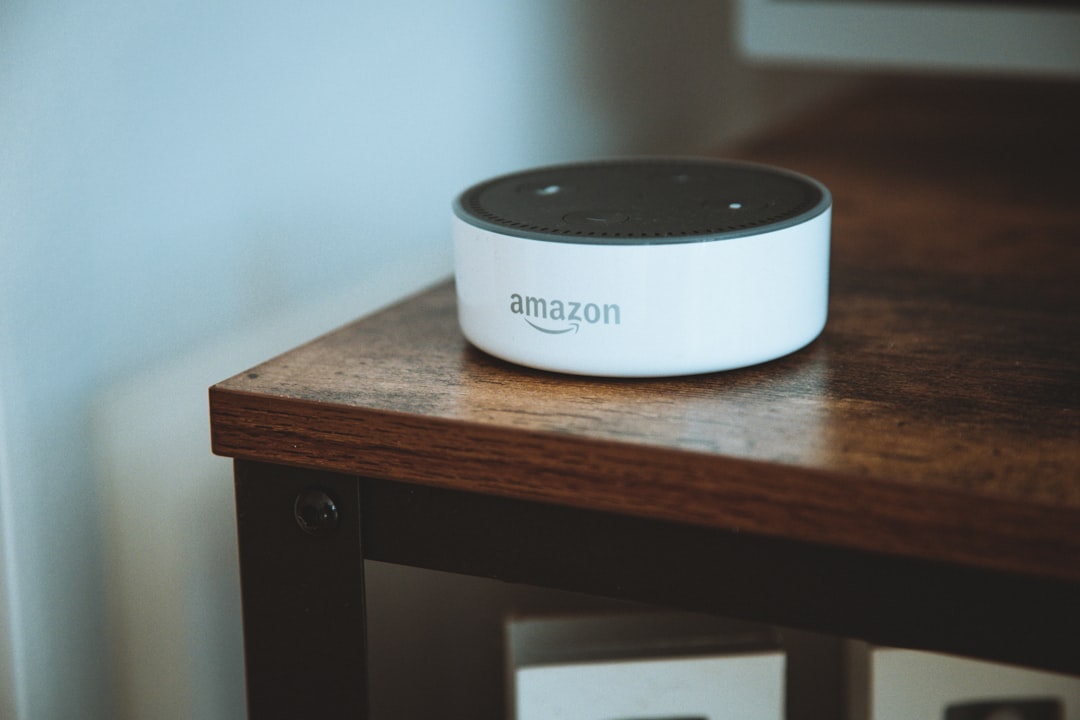
The Echo Show is one of Amazon’s most versatile smart devices, combining the power of Alexa’s voice assistant with a built-in touchscreen for enhanced interaction. Whether you’re setting up a new Echo Show or trying to reconnect it to the Alexa app, the process is straightforward when approached step by step. Connecting your Echo Show to the Alexa app ensures that you’re able to manage settings, integrate smart home devices, control routines, and utilize all the features that make Alexa central to a smart home ecosystem.
TLDR: How to Connect Echo Show to Alexa App
To connect your Echo Show to the Alexa app, start by powering on your device and ensuring it’s connected to Wi-Fi. Download and open the Alexa app on your phone or tablet, then sign in with your Amazon account. Follow the prompts within the app to add a new device and select “Echo Show” from the list. Complete the on-screen instructions on both the app and the Echo Show to finish setup.
Why Connecting Your Echo Show to the Alexa App is Crucial
While the Echo Show can do plenty on its own, connecting it to the Alexa app on your smartphone or tablet unlocks its full potential. The app acts as the control hub for everything related to Alexa and Amazon smart devices. Here are a few key benefits of making this connection:
- Device Management: Customize settings, update software, and manage your Echo Show’s preferences remotely.
- Drop-In and Communication: Enable intercom-style communication between Alexa-compatible devices.
- Smart Home Integration: Sync smart plugs, lights, cameras, and more via Alexa app for voice command capability through the Echo Show.
- Routine Creation: Automate daily tasks like turning lights on at sunset or getting a weather update every morning.
If you’ve just unboxed your Echo Show or need to reset and re-link it, follow this trusted step-by-step process.
Step 1: Prepare Your Echo Show
Before you begin the connection process, make sure your Echo Show is plugged into a power outlet and ready to be set up. Upon first use or after a reset, the device should automatically enter setup mode.
If you’re not automatically prompted to set up the device, you can manually trigger the setup mode by following these steps:
- Swipe down from the top of the screen on your Echo Show.
- Tap Settings (gear icon).
- Navigate to Device Options, then select Reset to Factory Defaults.
Make sure your Echo Show remains powered on during the setup process and that it is within close proximity to your Wi-Fi router for a stable connection.
Step 2: Connect Your Echo Show to Wi-Fi
Connecting to Wi-Fi is an essential part of linking your Echo Show to the Alexa app. You will be prompted to select and sign into your Wi-Fi network directly from the Echo Show screen.
Here’s how to do it:
- When prompted on the device screen, select your Wi-Fi network from the list.
- Enter your Wi-Fi password using the on-screen keyboard.
- Tap Connect and wait for the device to verify and establish a connection. This could take a few minutes.
Once connected, your Echo Show may download software updates to optimize its functionality.
Step 3: Install and Open the Alexa App
If you haven’t already, go ahead and download the free Alexa app from the App Store (iOS) or Google Play Store (Android).
Once installed:
- Open the Alexa app.
- Log in using the Amazon account credentials you intend to use with your Echo Show.
Your Echo Show and the Alexa app must be set up using the same Amazon account for seamless syncing and functionality.
Step 4: Add Your Echo Show to the Alexa App
After logging into the app, follow these instructions to add your Echo Show:
- Tap Devices at the bottom right of the screen.
- Tap the ‘+’ icon at the top right corner, then select Add Device.
- Under What type of device are you setting up?, choose Amazon Echo.
- Select Echo Show from the list of device options.
The app will now search for nearby Echo devices. Make sure your Echo Show displays a pairing code or confirmation prompt—follow the instructions on both devices screen to complete pairing.
Step 5: Verify Registration and Customize Settings
Once the Echo Show is detected and successfully added to the Alexa app, it will complete registration to your Amazon account. After that, it’s time to personalize and optimize your device experience.
Within the Alexa app, you can now:
- Set your device name (useful if you have multiple Echo devices).
- Assign the Echo Show to specific groups or rooms in your smart home setup.
- Choose your preferred language and time zone.
- Enable skills such as shopping lists, music services (Spotify, Amazon Music), calendars, and more.
This final step ensures your Echo Show behaves exactly how you want and integrates smoothly with all other Alexa-compatible devices in your home.
Troubleshooting Common Issues
Even when following steps diligently, technical glitches can occur. Here are the most common problems and how to solve them:
- Device Not Found in Alexa App: Ensure your Echo Show is on the same Wi-Fi network as your smartphone, and Bluetooth is enabled.
- Echo Show Won’t Connect to Wi-Fi: Reboot your Wi-Fi router, verify the correct password, and move the Echo Show closer to the signal.
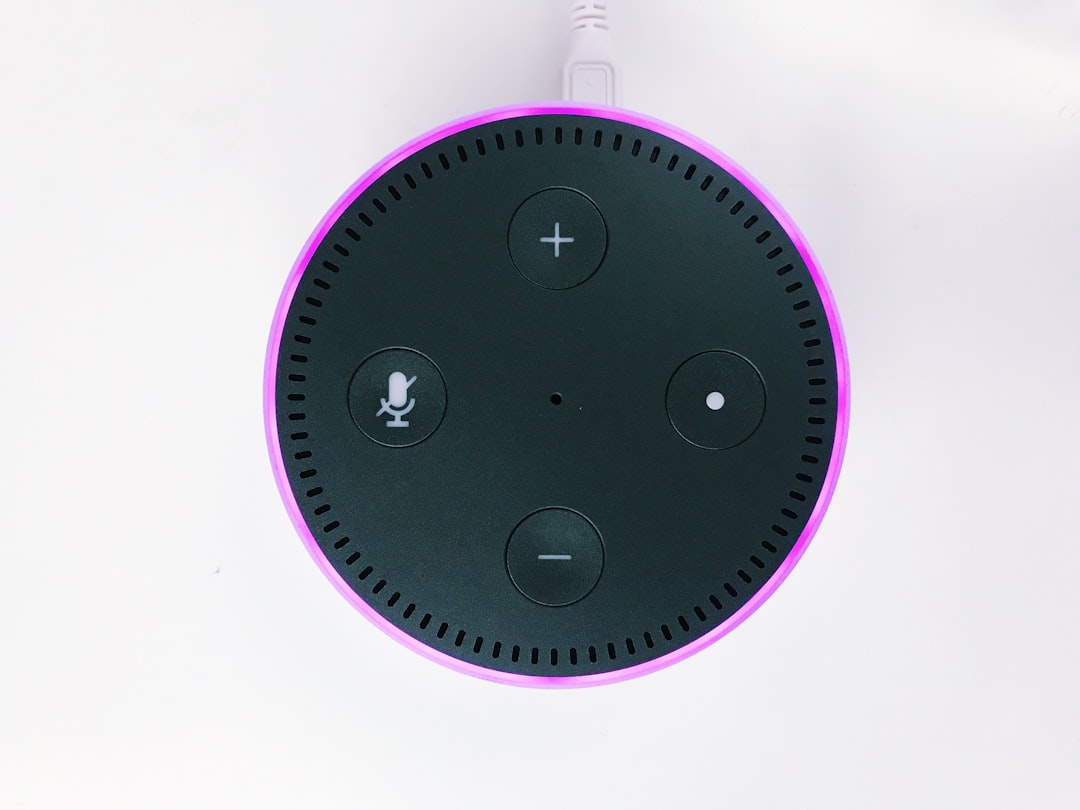
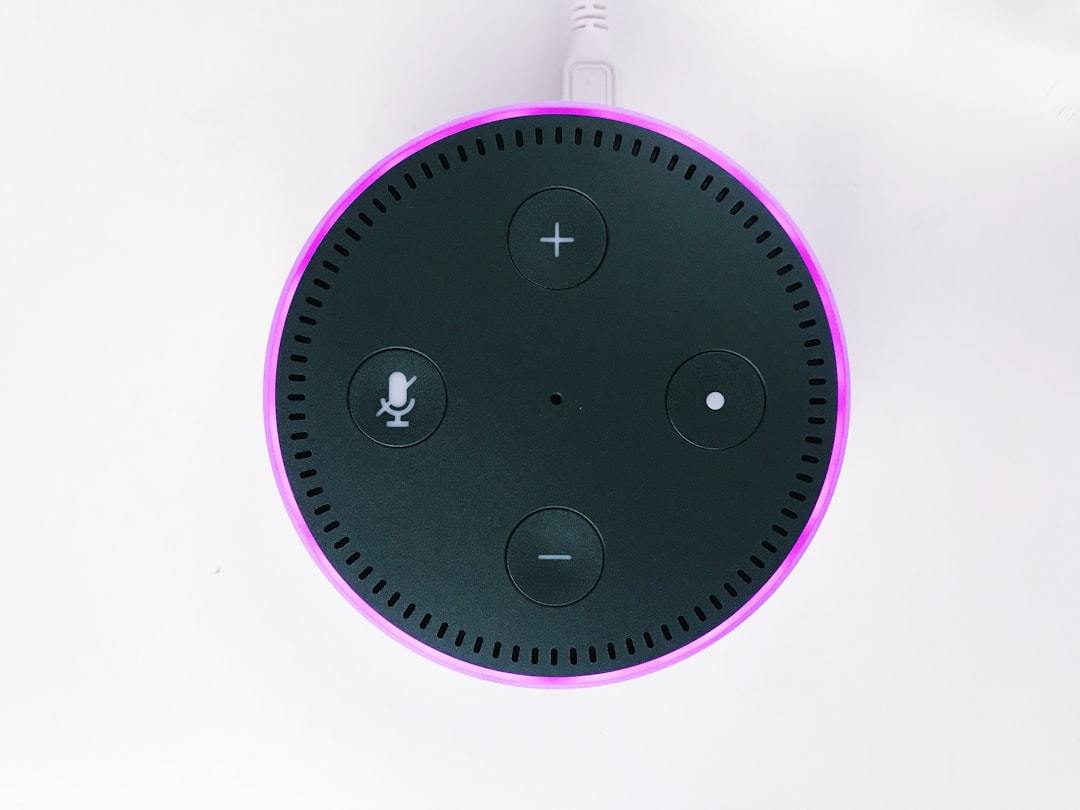
- Unresponsive Device: Hold down the Mute and Volume Down buttons for 15 seconds to perform a quick reboot.
If these steps don’t resolve your issue, visit Amazon Device Support for further guidance.
Enhancing the Experience Post-Setup
Congratulations! Your Echo Show should now be properly connected to the Alexa app and working seamlessly. But there’s still more you can do to maximize its utility:
- Setup Video Calls: Link your contacts through the Alexa app for easy calling and messaging.
- Use as a Digital Frame: Display personal photos from Amazon Photos or Facebook.
- Smart Home Dashboards: View and control smart devices through the Echo Show’s screen interface.

Furthermore, you can explore Alexa routines and voice commands to automate your home and enjoy a hands-free lifestyle.
Final Thoughts
Connecting your Echo Show to the Alexa app is a decisive step in turning your home into a smarter, more interactive environment. With just a few easy-to-follow steps involving Wi-Fi setup, app pairing, and customization, you’ll unlock access to a full suite of features designed to simplify daily tasks, increase convenience, and enhance communication.
Whether managing smart home devices or simply staying entertained and informed, the Echo Show—paired with the Alexa app—stands as a reliable and intelligent centerpiece in your modern home.

Related Posts
Shopify vs WooCommerce vs BigCommerce: Best eCommerce Platform for Scaling Online Stores in 2026
How to Install Python on Windows, Mac, and Linux: Full Beginner Setup for Data Science and Automation