So, you’re all set to play on the HWM server. You sit down, grab some snacks, launch the game, and… nothing. The server browser spits out a bunch of nothing. No servers. No fun. Don’t worry — you’re not alone. Let’s figure out why it’s being a grump and how to fix it.
TL;DR: HWM Server Browser might not be working because of simple things like internet issues, outdated game versions, or server problems on their end. Restart your game, check your connection, and make sure your firewall isn’t blocking anything. If all that fails, try manually joining servers. Keep reading for the full how-to fix it guide!
Why Is the HWM Server Browser Broken?
There’s more than one reason why the HWM server browser might not be working. Sometimes it’s your computer. Sometimes it’s your internet. And sometimes… it’s just the game being difficult.
Let’s explore the common reasons one by one.
1. Internet Connection Issues
This is the most obvious one. If your internet is acting weird, the server list won’t load. Server browsers need to reach out to the internet to show you available servers.
- Slow or unstable connection
- You’re on a public or school network with restrictions
- Ping or packet loss issues
Try switching to another network or restarting your router. Sometimes the simplest fixes work the best.
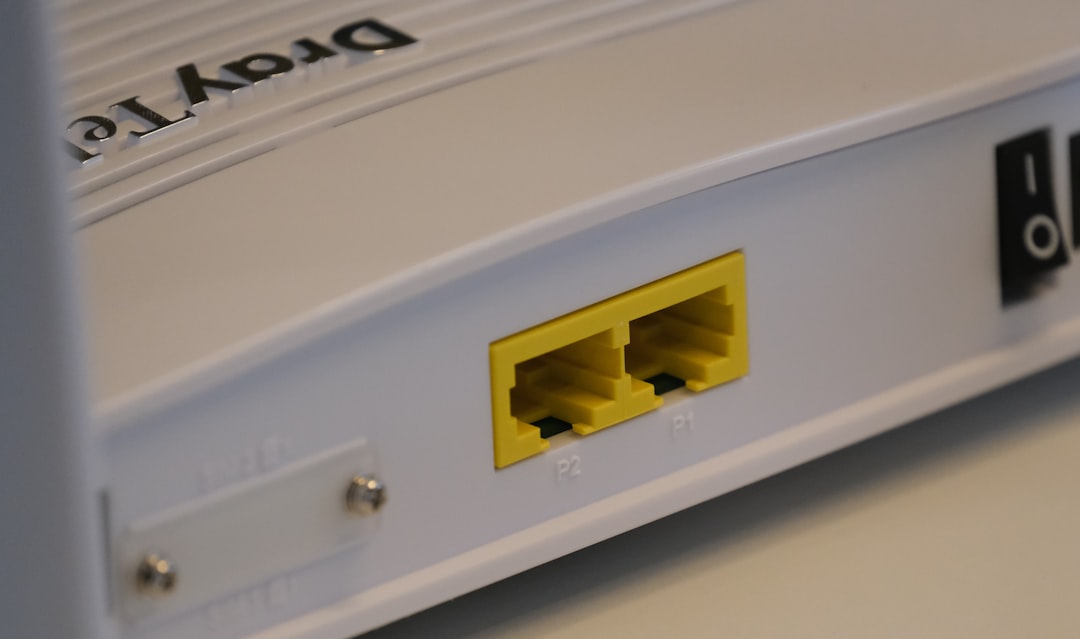
2. Firewall or Antivirus Blocking the Server Browser
Your own security software might be overprotective. Firewalls can block the game from connecting to the internet properly.
If you’re running Windows Firewall, it might ask you once if the game can connect. If you missed it or clicked “No” by accident — oops!
Here’s how to check:
- Go to your Control Panel
- Select “Windows Defender Firewall”
- Click “Allow an app or feature through Firewall”
- Look for HWM or the launcher and make sure both Private and Public boxes are checked
3. Game Version Outdated
Games get updates. If your version of HWM isn’t the latest, the server browser might not work. Servers usually require you to be on the latest version to show up.
Open your game launcher and check for updates. If you use Steam or another platform, it should alert you when there’s a new version. But sometimes, it doesn’t. So give it a manual nudge!
4. Corrupted Game Files
Files can get corrupted. It happens. Especially if the game crashed or didn’t install properly.
If things seem weird (slow load times, missing textures, etc.), it’s a good idea to verify or reinstall the game.
Here’s how to verify on Steam:
- Right-click on the game in your library
- Click “Properties”
- Go to “Installed Files”
- Click on “Verify integrity of game files”
Let Steam do its magic. If this doesn’t work, consider a clean reinstall.
5. Master Server Down
This one isn’t your fault. Sometimes HWM’s master server (the one that tells your game what servers exist) just… goes offline.
There’s no fix for this on your end. You can try checking:
- Official forums or Reddit
- Server status pages (if available)
- Discord servers – they always know what’s up
6. Filters Are Too Strict
When using the server browser, make sure your filters aren’t excluding all the servers. That happens more than you think!
Reset your filter settings:
- Empty all search boxes
- Turn off ping/region filters temporarily
- Make sure you’re not only showing servers with friends
Once you’ve reset everything, hit Refresh and give it a sec to catch up.

How to Get Around It
If you’ve tried all the above and your HWM server browser is still being stubborn, here are a few workaround tips.
1. Direct IP Join
If you know the IP address of a server, join it directly. Ask friends, find it in Discord, or look it up online.
Here’s how:
- Open the game
- Click on “Direct Connect” or similar option
- Enter the full IP (e.g., 192.168.1.2:27015)
2. Use a Server List Website
Some community-run sites keep track of HWM servers. They often list IPs, server names, and current players.
Search for “HWM server list” to find the most updated ones. Copy the IPs into the game manually like before.
3. Check Community Channels
Reddit, Discord, and HWM forums are gold mines for live server info. Plus, they’ll tell you if the browser’s broken for everyone or just you.
4. Reinstall Your Game
Yep — the nuclear option. But sometimes, a full reinstall resets the broken parts of your game and fixes everything.
If you’ve tried everything else, and you’re still floating in an infinite list of emptiness, it might be time to delete and re-download.
Bonus Tips
Here are some small but mighty tips that could make a huge difference:
- Always run the game as Administrator
- Use a wired Ethernet connection instead of Wi-Fi
- Temporarily turn off VPNs while browsing servers
- Restart your computer more often than once every blue moon
When All Else Fails…
If you’ve tried literally everything… take a break. It might not be your fault. Game servers have hiccups, outages, and gremlins in the wires.
Go outside, grab a snack, and come back in 30 minutes. Sometimes everything magically works again!
Final Thoughts
The HWM server browser not working is super annoying. But the good news? It’s almost always fixable. Try the basics first: restart the game, check your connection, and look out for updates or firewalls getting in the way. If the main server list dies, direct connect or community lists can still keep you in the action.
Don’t give up. The servers miss you too!