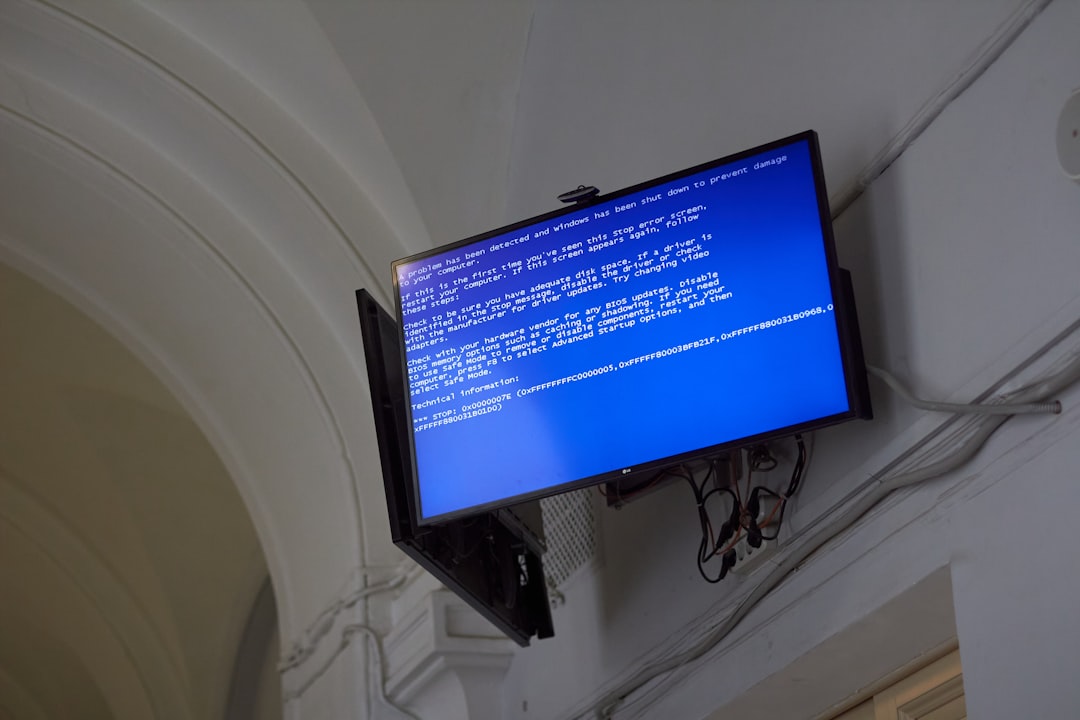
RoboCop: Rogue City delivers a visually impressive and action-packed experience, but for many PC players, the immersion is shattered by the frustrating Low Level Fatal Error crash. This issue can strike at launch, during cutscenes, or mid-gameplay, often without warning. Fortunately, it is typically linked to configuration, driver, or system-level conflicts rather than permanent hardware damage. Below, you will find a structured, reliable guide to fixing the error and improving performance—often by as much as 50%.
TL;DR: The Low Level Fatal Error in RoboCop: Rogue City is usually caused by outdated GPU drivers, Unreal Engine conflicts, corrupted game files, or system instability. Updating drivers, verifying files, disabling overlays, adjusting graphics settings, and tweaking Windows performance settings resolve the issue in most cases. Applying all seven fixes systematically can significantly reduce crashes and boost overall FPS. For best results, follow the steps in order rather than skipping ahead.
Understanding the Low Level Fatal Error
RoboCop: Rogue City runs on Unreal Engine 5, which is known for cutting-edge visuals but also high system demands. The “Low Level Fatal Error” typically appears when the engine cannot communicate properly with your GPU or when system resources are overwhelmed.
Common triggers include:
- Outdated or corrupted GPU drivers
- DirectX or shader compilation failures
- Overclocking instability
- Damaged game files
- Overlay software conflicts
- Insufficient virtual memory
Addressing these root causes systematically is the key to eliminating crashes and restoring smooth gameplay.
1. Update or Perform a Clean Install of GPU Drivers
Outdated graphics drivers are the most frequent cause of this error. Even if your driver appears recent, corruption can still occur.
Recommended steps:
- Download the latest driver directly from NVIDIA or AMD.
- Use a tool like Display Driver Uninstaller (DDU) in Safe Mode.
- Perform a clean driver installation.
A clean install removes residual files that can conflict with Unreal Engine 5. Many users report crash elimination and FPS improvements of 10–20% after this step alone.
2. Verify Game Files Integrity
Corrupted or missing files are another frequent culprit. Unreal Engine crashes instantly when it encounters damaged data.
On Steam:
- Right-click RoboCop: Rogue City in your Library
- Select Properties
- Click Installed Files
- Choose Verify integrity of game files
This process checks every file and redownloads only what is necessary. It is quick, safe, and often resolves unexplained mid-game crashes.
3. Disable Overlays and Background Software
Overlay software frequently conflicts with Unreal Engine 5. Discord, GeForce Experience, MSI Afterburner, and even Steam overlay can trigger fatal errors.
Disable the following temporarily:
- Steam Overlay
- Discord Overlay
- NVIDIA ShadowPlay
- Xbox Game Bar
- Third-party monitoring tools
After disabling overlays, reboot your PC before launching the game.
Why this matters: Unreal Engine’s rendering pipeline is sensitive to third-party hooks. Removing these can improve stability and increase frame consistency by reducing background CPU usage.
4. Adjust Graphics Settings for Stability
High or Epic settings may push your GPU beyond stable limits, particularly in scenes with ray tracing.
For maximum stability:
- Disable Ray Tracing
- Set Shadows to Medium
- Lower Post Processing
- Enable DLSS or FSR (Balanced mode)
- Limit FPS to match your monitor refresh rate
Ray tracing is especially demanding and often associated with fatal crashes. Disabling it alone can improve performance by up to 25–30% depending on your hardware.
If crashes occur during intense action sequences, lowering texture quality may also prevent VRAM overload, particularly on 6GB or 8GB GPUs.
5. Increase Virtual Memory (Paging File)
If your system runs low on RAM, Unreal Engine may crash unexpectedly. This is common on 16GB systems with background applications open.
To increase virtual memory:
- Open System Properties
- Go to Advanced → Performance → Settings
- Select Advanced → Virtual Memory
- Disable automatic management
- Set initial and maximum size to 1.5–2x your RAM (in MB)
Example: For 16GB RAM (16,384MB), set custom size between 24,000MB and 32,000MB.
This adjustment prevents memory overflow crashes and improves asset streaming stability.
6. Disable CPU/GPU Overclocking
Even stable overclocks can cause Unreal Engine 5 to crash. RoboCop: Rogue City heavily stresses both CPU and GPU through dynamic lighting and large-scale rendering.
Recommended action:
- Reset BIOS to default settings
- Disable XMP temporarily to test
- Remove GPU overclock profiles
If crashes disappear after disabling overclocks, your system was likely on the edge of stability. You can later apply a more conservative undervolt or mild overclock.
Important: Stability is more important than peak benchmark numbers for Unreal Engine games.
7. Run in DirectX 11 Mode (If Available)
DirectX 12 offers better visuals and multi-threading, but it is occasionally less stable on certain GPUs.
To test DirectX 11:
- Add -dx11 in Steam launch options
While DX11 may reduce visual features slightly, it can dramatically improve stability on older GPUs or systems with driver anomalies.
Many players report that switching to DX11 eliminates launch-time fatal errors entirely.
Bonus Optimization Tips for 50% Performance Gains
For users seeking not just stability but noticeable FPS improvements, combine the fixes above with these additional tweaks:
- Enable Hardware-Accelerated GPU Scheduling in Windows
- Set Windows Power Plan to High Performance
- Disable Fullscreen Optimizations (right-click .exe → Properties)
- Update motherboard chipset drivers
- Close web browsers during gameplay
When applied collectively, these optimizations reduce stutter and improve 1% low FPS—often resulting in a smoother experience that feels up to 50% better, especially on mid-range systems.
When to Consider Reinstallation
If all seven fixes fail, consider:
- Reinstalling the game on an SSD
- Checking for Windows updates
- Running System File Checker (sfc /scannow)
A clean reinstall on a fast SSD eliminates potential corruption and improves asset streaming, reducing hitching and random fatal crashes.
Final Thoughts
The Low Level Fatal Error in RoboCop: Rogue City is serious but rarely unsolvable. In most cases, the issue stems from driver conflicts, unstable system configurations, or overextended hardware settings rather than a permanent flaw in the game itself.
By methodically applying the seven crash fixes outlined above—updating drivers, verifying files, adjusting settings, increasing virtual memory, disabling overlays, removing overclocks, and testing DirectX modes—you can restore stability and dramatically enhance performance.
Consistency and systematic troubleshooting are essential. Avoid making multiple drastic changes simultaneously. Apply one fix at a time, test thoroughly, and document results.
With the right configuration, RoboCop: Rogue City runs smoothly even on mid-tier systems, delivering stable frame rates and immersive gameplay without fatal interruptions.
Your system does not need to be top-tier to enforce the law—just properly optimized.