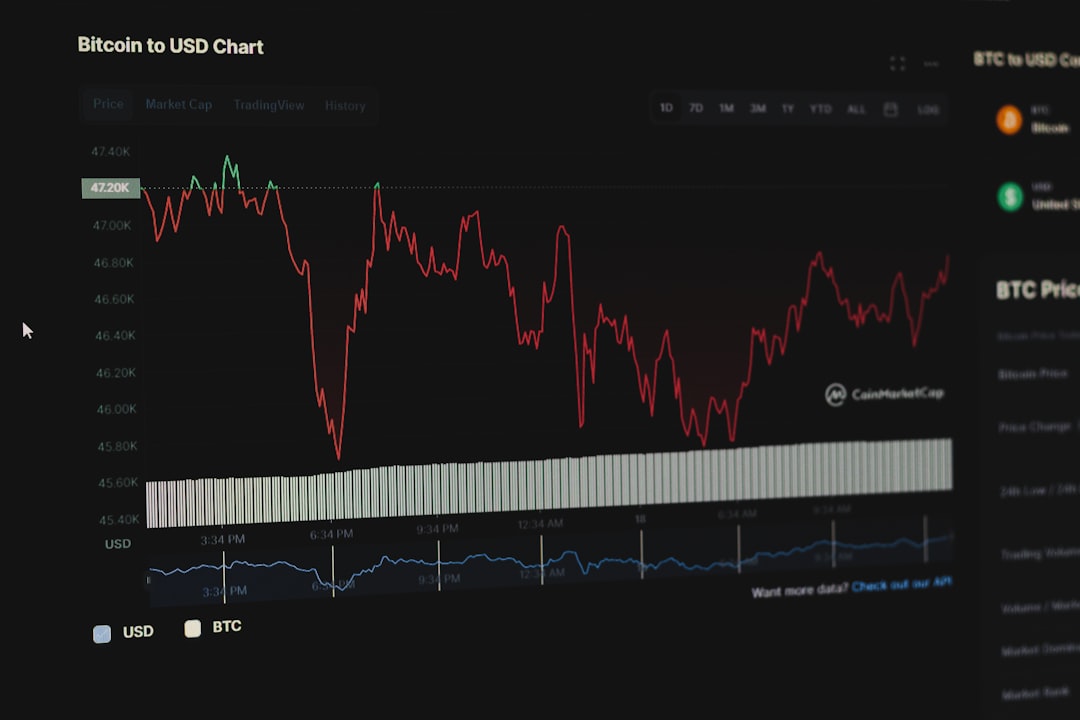
Business intelligence tools have revolutionized the way organizations work with data, make decisions, and plan for the future. One of the most powerful and accessible tools in this space is Microsoft Power BI. With its robust set of analytical capabilities, Power BI enables users to not only understand their current data but also predict future trends through forecasting. But how exactly does forecasting work in Power BI?
TL;DR: Power BI allows users to perform forecasting on line charts using built-in analytics features. It’s easy to configure, customize, and interpret. Forecasting works best with time-series data and gives valuable insights into trends, seasonality, and projected outcomes. This guide walks you through the steps to create, configure, and refine forecasts using Power BI Desktop.
Understanding Forecasting in Power BI
Forecasting in Power BI uses built-in statistical models to project future values based on historical data. It is available primarily in line charts and can be configured with just a few clicks. Behind the scenes, Power BI employs the Exponential Smoothing (ETS) algorithm, which adjusts its calculations using seasonality and trend analysis.
Why Use Forecasting?
Forecasting helps analysts and decision-makers:
- Predict future sales, revenue, or market trends
- Identify seasonal patterns in customer behavior
- Anticipate shortages or surpluses in inventory
- Support financial planning with data-driven projections
How to Prepare Your Data
Before you begin forecasting, make sure your data has:
- A date or time-based column to serve as the x-axis
- Numerical values for the y-axis you want to forecast
- Consistent granularity (days, weeks, months, etc.)
For example, monthly sales over the last 2 years is ideal for a forecast of upcoming quarters.
Image not found in postmetaStep-by-Step Guide to Forecasting in Power BI
1. Open Power BI Desktop and Load Your Data
You can import data from various sources such as Excel, SQL databases, or cloud services. Ensure that your time-based column is correctly formatted as a date/time field in Power BI.
2. Create a Line Chart
Forecasting is only available for line charts. To create one:
- Select the Line chart visualization from the Visualizations pane.
- Drag your time-based field into the X-axis.
- Add the measure (value you want to forecast) into the Y-axis.
3. Enable Forecasting
Once you have your line chart set up:
- Click on the line chart to select it.
- In the Visualizations pane, click the Analytics icon (magnifying glass).
- Scroll down to find Forecast, then click Add.
4. Configure Forecast Settings
Now you can adjust several parameters:
- Forecast length: Define how far into the future you’d like to forecast (e.g., 6 months).
- Confidence interval: Adjust how confident you want the projections to be (95% is default).
- Ignore last: Use this to exclude recent incomplete periods (e.g., the current month).
- Seasonality: Let Power BI detect it automatically or set it manually (e.g., 12 for yearly cycles).
5. Interpret the Forecast
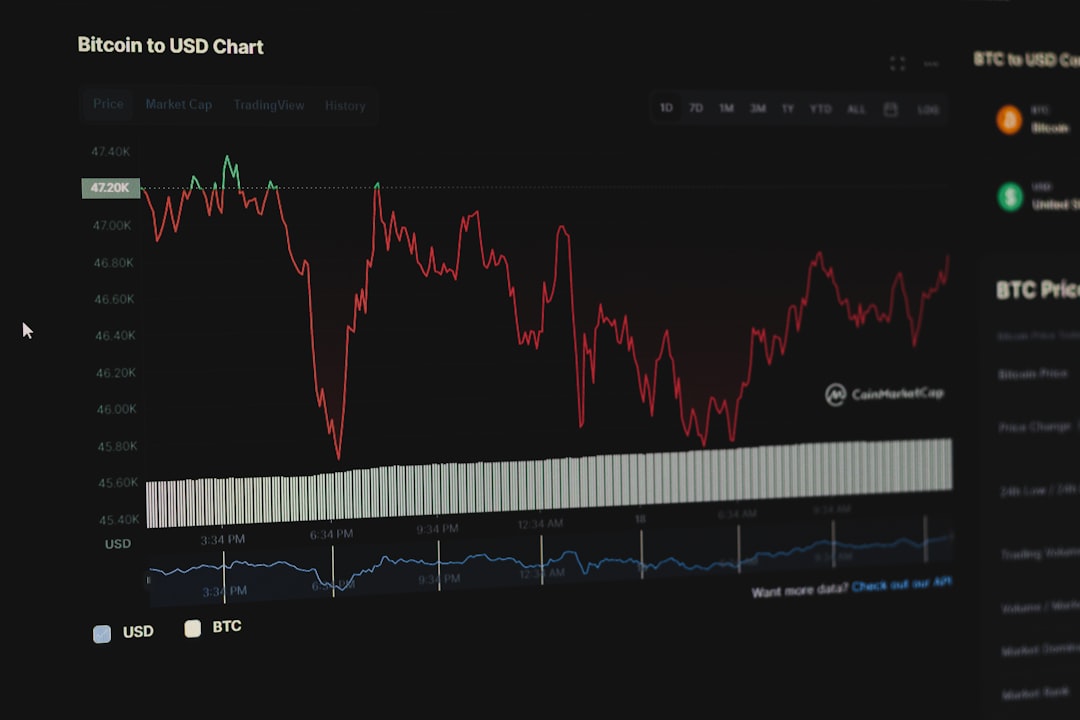
Your chart will now show a dashed line projecting forward from your data. The shaded region around the forecast line represents the confidence interval. A narrower band indicates more certainty, while a wider band suggests more variability and risk.
Pro Tips for Better Forecasts
- Use clean, complete datasets: Missing or irregular data can reduce forecast accuracy.
- Ensure consistent time intervals: Mixing daily and monthly data, for example, can skew results.
- Test forecast settings: Try different forecast lengths or seasonality settings to see what works best for your data.
Limitations of Power BI Forecasting
While Power BI forecasting is impressive, it’s important to understand its limitations:
- Works only in line charts
- Does not support custom forecasting models or regression analysis natively
- Forecasts are not available when using DirectQuery mode
- Granularity (e.g., week vs. month) heavily impacts results
For advanced forecasting, Power BI can be paired with tools like R or Python for custom scripts and machine learning models.
Exporting and Sharing Forecasts
Once your visual with forecasting is ready, you can share it through:
- Power BI Service: Publish your report and share dashboards with users
- Power BI apps: Bundle your visuals with other reports
- PDF or PowerPoint: Export forecast visuals for use in presentations or reports
Beyond Basic Forecasting: Advanced Analytics
If Power BI’s built-in forecasting is not sufficient for your business needs, consider using:
- R or Python scripts in Power BI for complex analytics
- Azure Machine Learning models integrated into Power BI
- Power Query transformations to preprocess time-series data
These methods add flexibility and can be tailored specifically to your business domain and KPIs.
Real-World Use Cases
Here are some examples of how different industries are using forecasting in Power BI:
- Retail: Predict seasonal demand and optimize inventory
- Finance: Project revenue, expenses, and cash flow
- Manufacturing: Forecast production needs and reduce downtime
- Healthcare: Anticipate patient admission rates and resource allocation
Conclusion
Forecasting in Power BI is a powerful feature that empowers users to project trends, identify upcoming risks, and make proactive decisions. By following a few straightforward steps, you can incorporate predictive insights directly into your reports and dashboards. While this tool may not replace sophisticated statistical software, it’s an incredibly useful addition to any business analyst’s toolkit—combining ease of use with actionable intelligence.
So next time you find yourself staring at a chart wondering “What comes next?”, remember—Power BI can help you look ahead.