You turn on your VPN to stay safe and private. But suddenly your blazing-fast internet feels like it’s crawling through mud. Videos buffer. Games lag. Downloads stall at 73%. Sound familiar? A VPN can protect your privacy, but small mistakes can quietly slow your connection by up to 50%—or even more.
TLDR: VPNs don’t have to slow you down, but simple setup mistakes can crush your speed. Picking far-away servers, using the wrong protocol, or running multiple security apps at once can hurt performance. A few smart tweaks can instantly boost speeds while keeping your connection secure. Fix these seven mistakes and enjoy faster, smoother browsing today.
1. Connecting to a Server That’s Too Far Away
This is the most common mistake. And the easiest to fix.
When you connect to a VPN server on the other side of the world, your data has to travel farther. More distance means more time. More time means more lag.
Imagine mailing a letter across town versus across the ocean. Which arrives faster? Exactly.
What happens when you choose a distant server:
- Higher latency (ping)
- Slower download speeds
- Video buffering
- Lag in online games
What to do instead:
- Choose a server close to your physical location.
- Use your VPN’s “Fastest Server” option.
- Only pick foreign servers when you need region-specific content.
Shorter distance. Faster speeds. Simple.
2. Using the Wrong VPN Protocol
VPN protocols are like different delivery methods. Some are armored trucks. Others are sports cars.
Many people never change the default protocol. That can cost you speed.
Common VPN protocols:
- OpenVPN: Very secure, but sometimes slower.
- IKEv2: Fast and stable, good for mobile devices.
- WireGuard: Modern, lightweight, and often the fastest.
If your VPN is set to a heavier protocol, you might be sacrificing speed you don’t need to lose.
Quick fix:
- Switch to WireGuard if your VPN offers it.
- Test different protocols using a speed test.
- Stick with the one that gives strong speed and stable performance.
Protocols matter more than most people realize.
3. Running Too Many Security Tools at Once
More protection sounds like a good thing. But stacking too many tools can choke your connection.
Here’s what often happens:
- VPN is encrypting traffic.
- Antivirus is scanning traffic.
- Firewall is filtering traffic.
- Browser has privacy extensions blocking scripts.
Your poor internet packets are being inspected five times before reaching their destination.
Result? Slower browsing and reduced speeds.
What you can do:
- Disable redundant browser VPN extensions if using a full-device VPN.
- Check your antivirus settings for traffic scanning options.
- Keep essential protections, but remove duplication.
Security should be layered. Not suffocating.
4. Ignoring Server Load and Congestion
Not all VPN servers are equal. Some are crowded. Very crowded.
Imagine getting on a highway at 3 a.m. Now imagine the same highway during rush hour. Same road. Very different experience.
VPN servers work the same way.
When a server is overloaded:
- Speeds drop.
- Latency spikes.
- Connections become unstable.
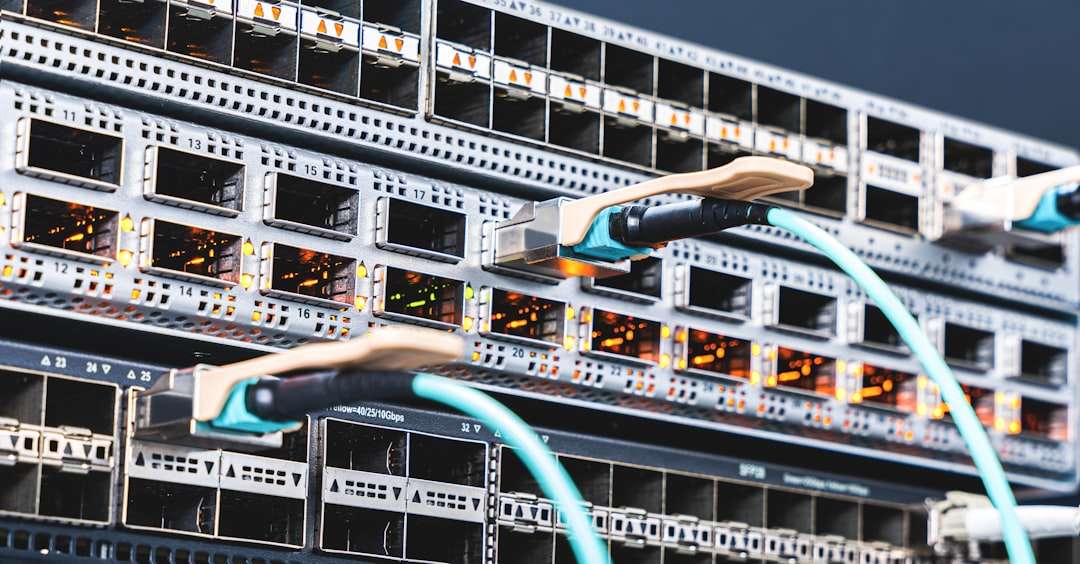
Many premium VPNs show server load as a percentage. If you see 85–100% load, avoid it.
Better strategy:
- Choose servers under 60% load.
- Try different cities in your country.
- Reconnect at a different time of day.
Sometimes the fix is just one click away.
5. Using a Cheap (or Free) VPN
This one stings. But it’s true.
Free VPNs often have:
- Limited bandwidth
- Data caps
- Throttled speeds
- Overcrowded servers
If thousands of users share a handful of servers, performance suffers. Badly.
Some free services even deliberately slow speeds to push you toward a paid plan.
A good VPN should offer:
- Large server networks
- Modern protocols like WireGuard
- No bandwidth limits
- Transparent privacy policies
You don’t need the most expensive plan on earth. But ultra-cheap can cost you in performance.
6. Forgetting to Update Your VPN App
Updates aren’t just cosmetic. They often include:
- Performance improvements
- Protocol enhancements
- Bug fixes
- Server optimizations
If you’re using a version from two years ago, you might be missing serious speed upgrades.
Developers constantly improve encryption efficiency. They fine-tune routing. They reduce overhead.
Easy win:
- Enable automatic updates.
- Restart the app after updating.
- Reboot your device occasionally.
It takes five minutes. It could boost speeds dramatically.
7. Running VPN on an Overworked Router
This one surprises many people.
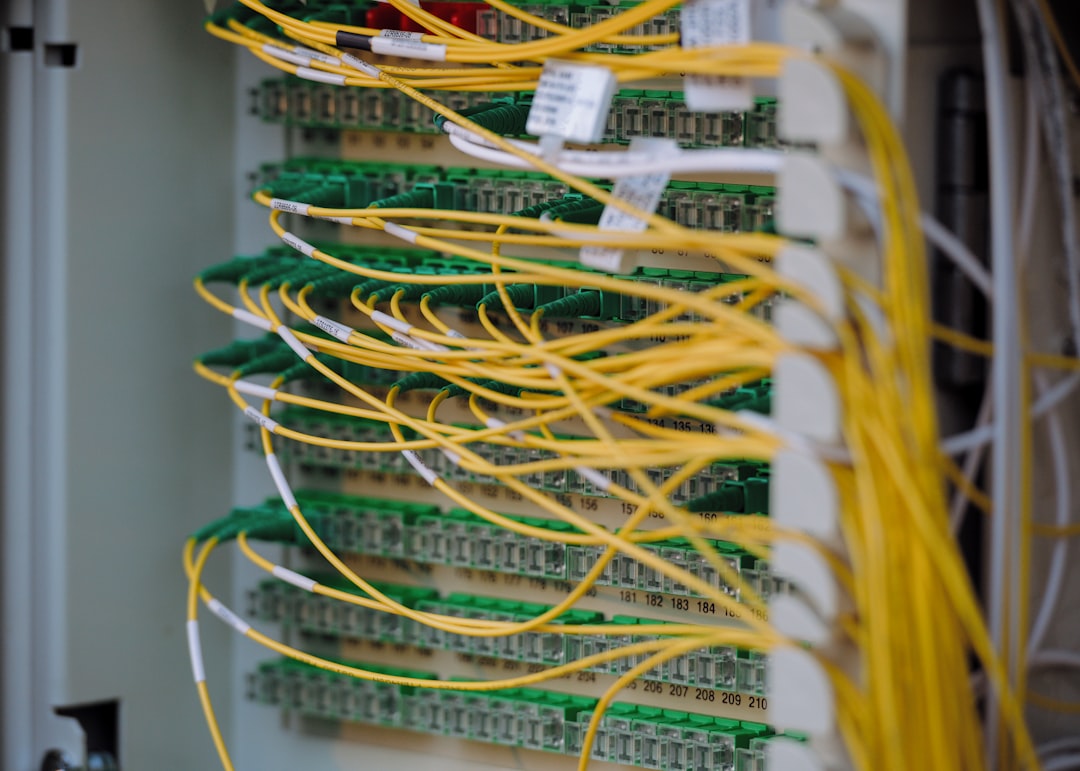
If you installed a VPN directly on your router, your connection might slow down. Not because VPNs are bad—but because your router is weak.
Encryption requires processing power. Many standard routers simply can’t handle it efficiently.
Signs your router is struggling:
- All devices are slow at once.
- Speed drops only when VPN is on.
- Router feels hot.
Solutions:
- Upgrade to a router designed for VPN usage.
- Use the VPN app directly on individual devices.
- Turn off the VPN on the router if not needed.
Sometimes your router is the bottleneck.
Bonus Tip: Not Testing Your Base Speed
Before blaming your VPN, test your raw internet speed.
Without a VPN turned on.
You might discover the issue is your ISP. Or your Wi-Fi signal. Or your old modem.
Do this:
- Run a speed test without VPN.
- Turn the VPN on.
- Run the test again.
- Compare download, upload, and ping.
A small drop (10–20%) is normal due to encryption. A 50% drop means something needs fixing.
How Much Speed Loss Is Normal?
Let’s be realistic.
A VPN encrypts your data. That process takes time. So some speed reduction is expected.
Typical speed impact:
- Excellent setup: 5–15% reduction
- Average setup: 15–25% reduction
- Poor setup: 30–50% (or worse)
If you’re losing half your speed, something on this list is likely the cause.
Quick Speed Boost Checklist
Want the fast version?
- Choose a nearby server.
- Switch to WireGuard.
- Avoid overloaded servers.
- Update your app.
- Limit duplicate security tools.
- Upgrade weak hardware if needed.
That’s it. Simple tweaks. Big difference.
Final Thoughts
A VPN should protect your privacy without ruining your streaming night.
Speed problems usually aren’t caused by the VPN itself. They’re caused by how it’s configured. Or where it’s connected. Or what it’s running on.
The good news? Most fixes take less than five minutes.
So before you rage-quit your VPN provider, check these seven common mistakes. Adjust a few settings. Run a quick speed test.
You might be surprised how fast things can get.
Secure. Private. And fast. That’s how a VPN should feel.