Timers are essential components in countless web applications, powering everything from countdown clocks to periodically updated data dashboards. JavaScript offers several methods for working with time-based functions, but one popular and versatile tool is setInterval. This method allows developers to execute a function repeatedly at specified time intervals, making it ideal for recurring tasks on the web page.
TL;DR
The JavaScript setInterval() function is used to execute a specified block of code repeatedly at fixed time intervals. It requires two arguments: a function to call and the time delay in milliseconds between executions. It’s ideal for use cases like countdown timers, animations, or live data updates. Always remember to use clearInterval() to stop the timer when it’s no longer needed, to prevent performance issues.
Understanding setInterval()
The JavaScript setInterval() method takes two parameters: a callback function and a time interval in milliseconds. When called, the method executes the callback function repeatedly after the delay period, until it is stopped.
setInterval(function, delay);
For example:
setInterval(() => {
    console.log("Hello every 2 seconds");
}, 2000);
This code prints “Hello every 2 seconds” to the console at 2-second intervals, continuing indefinitely until stopped.
Creating Basic Timers with setInterval()
Using setInterval(), developers can create functional timers. Here’s a simple example of a timer that counts upward every second:
let count = 0;
const intervalId = setInterval(() => {
    count++;
    console.log("Timer:", count);
}, 1000);
Using a variable to store the interval ID (in this case, intervalId) is critical because it allows the developer to stop the timer using clearInterval().
Stopping a Timer with clearInterval()
The timer initiated by setInterval() will continue running unless explicitly halted using clearInterval(). This is done by passing in the ID returned from setInterval(), as shown here:
clearInterval(intervalId);
Consider adding logic to stop the timer after a set duration:
let count = 0;
const intervalId = setInterval(() => {
    count++;
    console.log("Count:", count);
    if (count === 5) {
        clearInterval(intervalId);
        console.log("Timer stopped");
    }
}, 1000);

Countdown Timers
A popular use case for setInterval() is a countdown timer. Let’s say a timer counts down from 10 to 0, updating every second.
let timeLeft = 10;
const countdown = setInterval(() => {
    if (timeLeft <= 0) {
        clearInterval(countdown);
        console.log("Time's up!");
    } else {
        console.log(timeLeft + " seconds remaining");
    }
    timeLeft -= 1;
}, 1000);
This code starts at 10 and decreases by 1 each second, stopping when it hits 0.
Using setInterval() with HTML Elements
Integrating setInterval() with HTML updates allows dynamic content on webpages. Here’s how to display a timer inside a <div> element:
<div id="display"></div>

<script>
let seconds = 0;
const timer = setInterval(() => {
    document.getElementById("display").innerText = "Time: " + seconds + "s";
    seconds++;
}, 1000);
</script>
This example displays a live timer in the browser and updates every second.
Advanced Use: Updating Clocks and Real-Time Data
setInterval() is ideal for tasks needing repeated execution, such as updating a digital clock. Example:
function updateClock() {
    const now = new Date();
    const timeStr = now.toLocaleTimeString();
    document.getElementById("clock").innerText = timeStr;
}

setInterval(updateClock, 1000);
Combine this script with a simple HTML structure:
<div id="clock"></div>
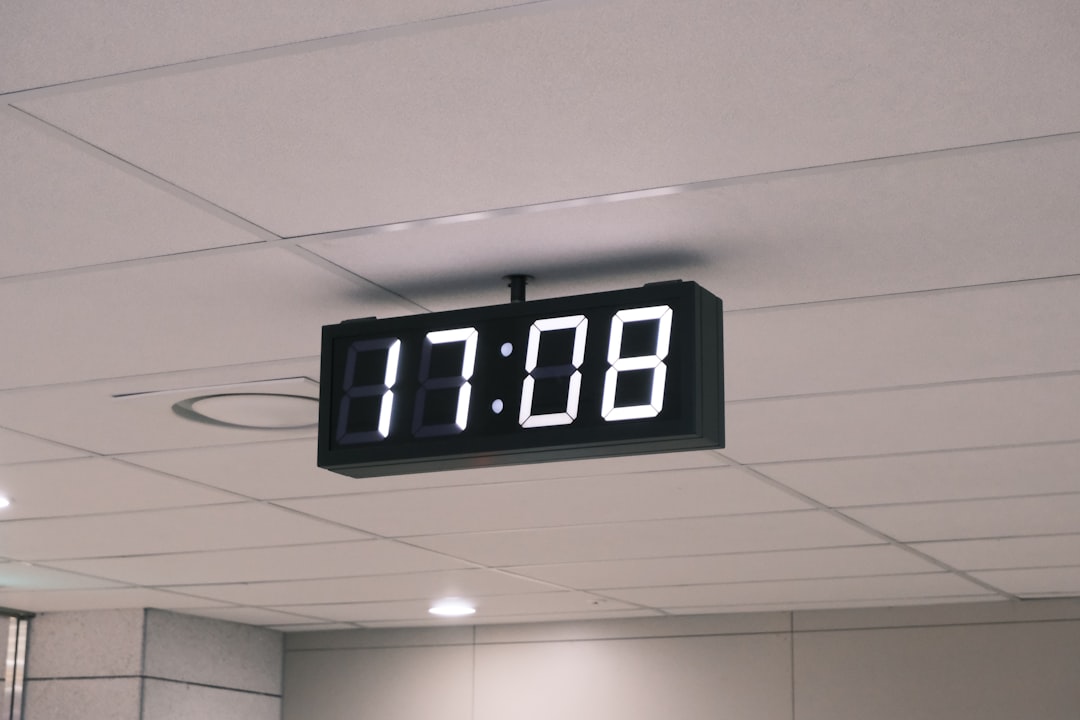
This displays a real-time clock that updates every second.
Tips and Best Practices
- Use clearInterval() to stop intervals when they’re no longer needed—which helps optimize performance.
- Watch for memory leaks: if you define intervals in conditions or inside components (e.g., in frameworks like React), ensure they’re cleared properly.
- setInterval is not guaranteed timing: JavaScript is single-threaded; exact intervals may drift if the event loop is busy.
- Prefer requestAnimationFrame for animations, as setInterval is not synchronized to the browser’s paint cycles.
Common Pitfalls
Sometimes developers run into unexpected issues with setInterval(). Here are a few to be aware of:
- Forgetting to call clearInterval(): This can lead to memory issues or unwanted continued executions.
- Overlapping execution: If the callback takes longer than the interval, executions may overlap, causing unexpected behaviors.
- Assuming perfect timing: Browsers don’t guarantee precise intervals—delays may occur under heavy load.
Alternatives to setInterval()
Besides setInterval(), JavaScript offers other options such as:
- setTimeout(): executes a function once after a delay.
- requestAnimationFrame(): ideal for smooth animations tied to browser refresh rate.
- Web Workers: useful for running background tasks without blocking the UI.
Conclusion
JavaScript’s setInterval() is a powerful tool for creating timers and handling recurring behavior in web applications. By understanding its syntax, use cases, and limitations, developers can implement everything from simple countdowns to dynamic clocks and auto-refreshing UI elements. Always remember the importance of halting intervals once they’ve served their purpose to ensure clean, performant code.
Frequently Asked Questions (FAQ)
- Q: What is the difference between setTimeout and setInterval?
A: setTimeout() runs a function once after a specified delay, while setInterval() runs the function repeatedly at set intervals. - Q: Can I pass arguments to the function in setInterval?
A: Yes. Use an anonymous function or bind to pass parameters.
Example:
setInterval(() => myFunc(arg1, arg2), 1000); - Q: How do I stop a setInterval timer?
A: Use clearInterval(intervalId) where intervalId is the value returned by setInterval(). - Q: Does setInterval guarantee exact timing?
A: No. Execution timing may drift due to the JavaScript event loop or browser throttling— especially on inactive tabs. - Q: Is setInterval good for animations?
A: Not ideal. For smoother UI animations, prefer requestAnimationFrame(), which is optimized for frame syncing.