For many viewers, YouTube is more than just a video platform—it is a music player, study companion, meditation guide, and entertainment hub. Yet surprisingly, a large percentage of users still replay videos manually, unaware that YouTube and various tools offer simple ways to put videos on repeat. Whether someone wants to loop a favorite song, replay a tutorial, or keep ambient sounds running for hours, there are several easy methods available.
TL;DR: YouTube allows users to loop videos directly through built-in features on desktop and mobile, but there are also lesser-known tricks using playlists, browser extensions, third-party websites, and smart TV options. Many viewers overlook these tools, manually replaying videos instead. This guide explains five effective methods—most of which 75% of users don’t realize exist—and shows how to use them step by step.
Why People Want to Loop YouTube Videos
Before diving into the methods, it helps to understand why looping matters. Users frequently repeat videos for:
- Music playback without switching to another streaming service
- Language learning and pronunciation practice
- Workout routines that follow a timed video
- Meditation or sleep sounds
- Memorization or rehearsal
Despite these common needs, many users still click “Replay” manually. Below are five smarter solutions.
Method 1: Use YouTube’s Built-In Loop Feature (Desktop)
This is one of the simplest yet most overlooked methods. Many desktop users do not realize YouTube already has a built-in loop function.
Image not found in postmetaHow It Works:
- Open the desired video on YouTube.
- Right-click directly on the video player.
- Select “Loop” from the dropdown menu.
Once enabled, a checkmark appears next to the Loop option. The video will automatically restart when it ends.
Why 75% of Users Miss It: Most viewers never right-click inside the video player. They assume replay requires external tools or playlists.
Best for: Music tracks, ambience, long-form tutorials, or background content on computers.
Method 2: Loop Videos on Mobile (Android & iPhone)
Many users believe looping only works on desktop, but YouTube’s mobile app also includes a native solution.
Step-by-Step Guide:
- Open the YouTube app.
- Play the video you want to repeat.
- Tap the Settings (gear icon) on the video.
- Select “Additional settings” or scroll to find “Loop video.”
- Toggle Loop video on.
On some app versions, users can also tap the three-dot menu and choose “Loop video” directly.
Why It’s Overlooked: The option is slightly hidden in the settings menu, and older app versions did not support it, leading many to assume it was impossible.
Pro Tip: Always update the YouTube app to ensure the loop feature is visible.
Method 3: Create a One-Video Playlist
This trick works on both desktop and mobile and is especially useful when looping multiple videos in a specific sequence.
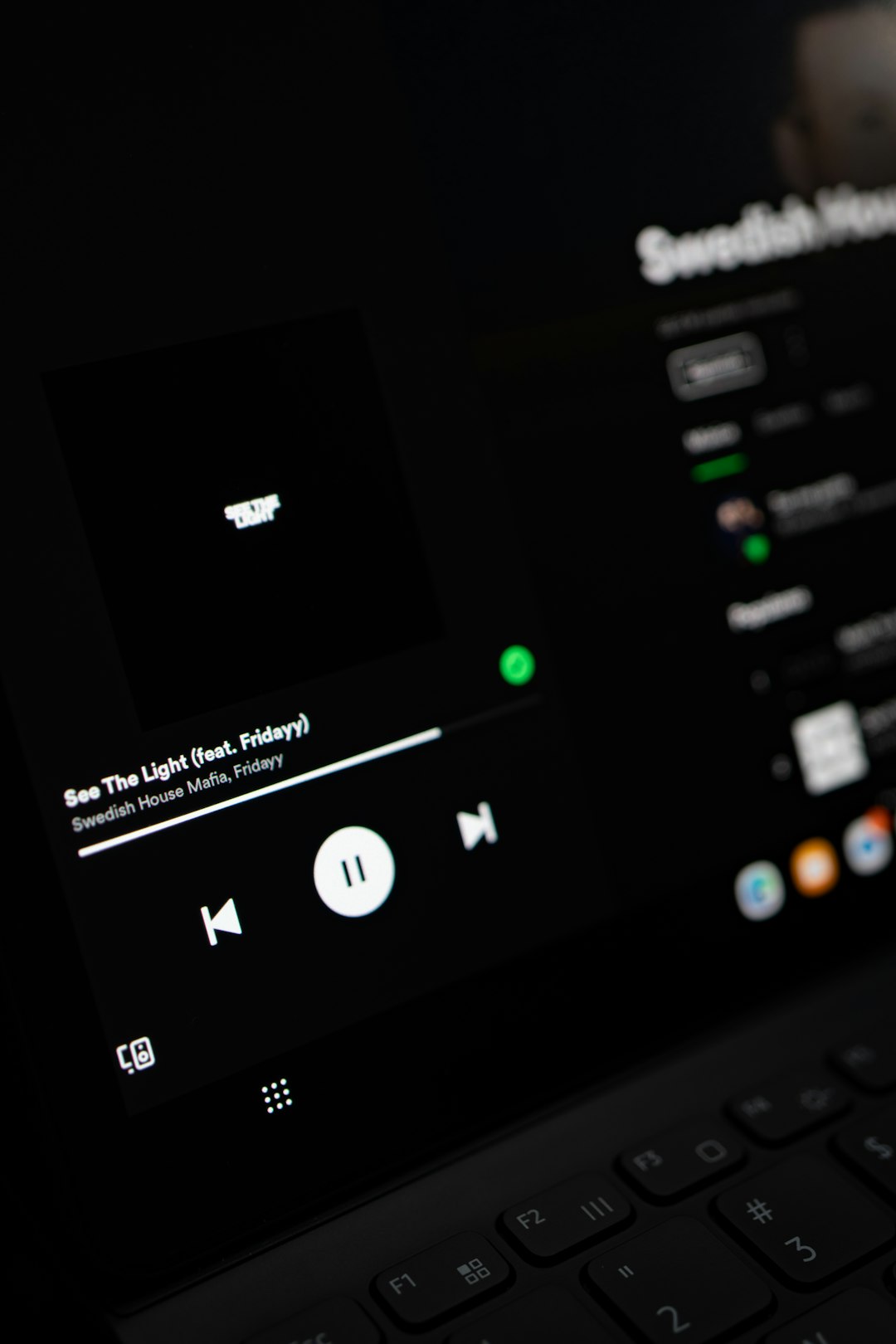
How to Do It:
- Open the video.
- Click “Save” beneath the video.
- Create a new playlist.
- Add only that one video.
- Open the playlist and tap the Loop Playlist icon.
The video will now repeat continuously because it is the only item in the playlist.
Why This Method Is Powerful:
- You can loop multiple videos in a custom order.
- It works across devices.
- You can share the looping playlist link with others.
Why Many Don’t Know About It: Users often think playlists are only for organizing content, not for repeating playback.
Best for: Workout routines, study sessions, curated music mixes, or motivational speeches.
Method 4: Use YouTube URL Tricks
This lesser-known hack is popular among advanced users. By modifying the video URL or using a specialized looping website, users can force repetition without playlists.
Option A: Manual URL Edit (Classic Trick)
Although YouTube’s interface has changed over time, some users still utilize looping web services:
- Copy the YouTube video URL.
- Paste it into a looping website designed for YouTube repeats.
- Choose how many times the video should repeat.
These services create a custom playback window that automatically replays content.
Option B: Embed Loop Parameter
Another lesser-known method involves embedding the video:
- Use the Embed option under “Share.”
- Modify the embed code to enable looping.
This approach is more technical but extremely useful for website owners who want background videos that repeat automatically.
Why 75% of Users Don’t Know This: It requires minor technical adjustments, and casual viewers rarely explore sharing or embedding options.
Method 5: Browser Extensions and Smart TV Options
Another powerful yet underutilized solution involves browser extensions and smart device features.
Browser Extensions
Several browser extensions allow users to:
- Automatically loop any YouTube video
- Set custom time segments to repeat
- Control playback speed and loop intervals
This is particularly useful for musicians or language learners who want to replay only a specific portion of a video.
Smart TVs and Streaming Devices
On smart TVs, users can:
- Add a video to a playlist.
- Enable repeat mode within the playlist.
While not always obvious, most smart TV YouTube apps include a loop playlist function.
Why It’s Overlooked: TV interfaces are simplified, and many users assume advanced playback controls are unavailable.
Bonus Tip: Looping Specific Segments Only
Sometimes users do not want the entire video repeated—just a specific section. Browser extensions and third-party looping tools allow start and end time customization.
Example Uses:
- Practicing a difficult guitar riff
- Repeating a language pronunciation clip
- Studying a complex tutorial step
This advanced function turns YouTube into a learning powerhouse rather than just an entertainment platform.
Common Mistakes People Make
Even when trying to loop videos, users often:
- Refresh the page instead of enabling loop
- Confuse autoplay with looping
- Assume mobile looping requires third-party apps
- Forget to update the YouTube app
Understanding the difference between autoplay (which moves to another video) and loop (which repeats the same video) is essential.
Final Thoughts
Looping YouTube videos is far easier than most people think. While the built-in desktop loop feature is the quickest solution, mobile settings, playlists, URL tricks, and browser extensions provide more control and flexibility. The reason 75% of users do not use these methods often comes down to awareness—many simply do not know the options exist.
By mastering these five methods, anyone can transform YouTube into a personalized music station, learning lab, or relaxation tool without constant manual replay.
FAQ: How to Put YouTube Videos on Repeat
1. Can YouTube automatically repeat a video?
Yes. On desktop, users can right-click the video and select “Loop.” On mobile, they can enable “Loop video” in the settings menu.
2. How do you loop a YouTube video on an iPhone?
Open the video in the YouTube app, tap the settings icon, and toggle the “Loop video” option. Alternatively, create a one-video playlist and enable repeat.
3. Can you repeat only part of a YouTube video?
Yes. Browser extensions and third-party looping tools allow users to define custom start and end times for partial repetition.
4. Is autoplay the same as loop?
No. Autoplay moves to the next recommended video, while loop repeats the same video continuously.
5. Does looping work on smart TVs?
Yes. Users can add a video to a playlist and enable repeat mode within the YouTube app on most smart TVs.
6. Do you need YouTube Premium to loop videos?
No. Looping works on both free and Premium accounts.
7. Why can’t I find the loop option?
Make sure the YouTube app is updated or try right-clicking directly inside the video player on desktop.
With these methods, repeating any YouTube video becomes effortless—no more manual clicking required.