Shared folders in Windows are essential for seamless file access and collaboration across different computers in a network. However, users occasionally encounter frustrating errors that disrupt this process. One such error is Error Code 0x800704F8, which can appear when trying to access or map shared network drives. This error signals challenges in system configuration or security settings, and can significantly hinder productivity if not resolved promptly.
TL;DR
Error 0x800704F8 in Windows occurs when attempting to access shared folders or network resources, usually due to system misconfigurations, outdated drivers, or connectivity issues. You can resolve it by checking network settings, modifying Group Policy configurations, updating system components, and resetting permissions. This guide offers precise and actionable steps for both basic and advanced users. Apply each method in order for the most efficient path to resolution.
What Is Error 0x800704F8?
Error code 0x800704F8 typically refers to a failure in accessing shared folders over a network. Windows throws this error when required permissions, policies, or services are misconfigured or when system files are corrupted. The full message often reads: “An unexpected network error occurred. Error code: 0x800704F8”.
This can happen in home networks, small business environments, or even large enterprise systems where file sharing is common between multiple machines running on Windows 10 or 11.
Common Causes of Error 0x800704F8
Understanding the root causes is critical in resolving this issue efficiently. Here are the most common culprits:
- Misconfigured Shared Network Permissions
- Outdated or Corrupt Device Drivers
- Disabled Services Required for File Sharing
- Corrupted System Files
- Incorrect Group Policy Settings
- Third-party antivirus or firewall interference
Step-by-Step Guide to Fix Error 0x800704F8
1. Verify Share Permissions and Network Configuration
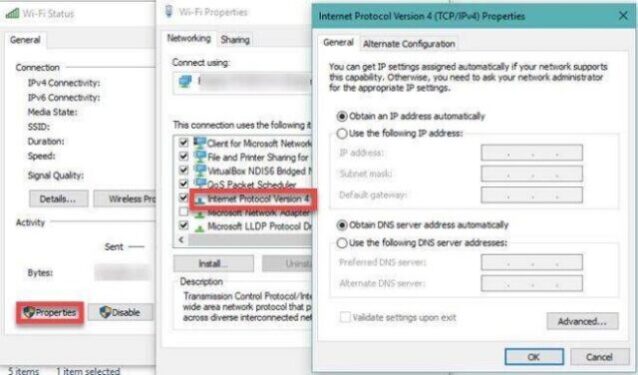
The first thing to check is whether the share settings are correct and the device is on the same network.
- Ensure that File and Printer Sharing is enabled.
- Make sure the devices involved are in the same Workgroup or network domain.
- Right-click the shared folder, go to Properties > Sharing > Advanced Sharing and verify that the “Share this folder” checkbox is marked.
- Set appropriate permissions under Permissions.
Also, ensure that Network Discovery is turned on from the Network and Sharing Center.
2. Update Windows and Network Drivers
Outdated or corrupt system drivers often cause communication breakdowns between devices.
- Open Device Manager (Win + X > Device Manager).
- Expand the Network Adapters section and right-click your adapter.
- Select Update Driver and choose Search automatically for drivers.
- Additionally, ensure Windows is fully updated via Settings > Windows Update.
A reboot after updating both should be done to apply changes effectively.
3. Run the Windows Network Troubleshooter
Windows has built-in diagnostics that can identify and resolve common sharing issues:
- Go to Settings > Update & Security > Troubleshoot.
- Select Additional troubleshooters.
- Click on Network Adapter or Shared Folders, and run the troubleshooter.
Follow the on-screen prompts and apply any fixes it recommends.
4. Check and Restart Services Required for File Sharing
Windows relies on certain background services for facilitating shared access. Verify these services are running:
- Press Win + R, type
services.mscand hit Enter. - Ensure the following services are set to Automatic and are running:
- Function Discovery Resource Publication
- SSDP Discovery
- UPnP Device Host
- Server
- Workstation
You can right-click on each service, choose Properties, and adjust the startup type accordingly.
5. Modify Group Policy Settings (Pro & Enterprise Editions only)
Group Policy can sometimes override sharing rules, especially in enterprise networks. Here’s how to review and change them:
- Press Win + R, type
gpedit.msc, and hit Enter. - Navigate to:
- Computer Configuration > Administrative Templates > Network > Network Connections > Windows Firewall > Domain Profile
- Edit the following settings and ensure file sharing is allowed:
- Windows Firewall: Allow inbound file and printer sharing exception – Set to Enabled
6. Use the System File Checker (SFC)
Damaged or missing system files can cause networking issues including 0x800704F8.
- Open Command Prompt as Administrator (Search “cmd”, right-click, Run as Administrator).
- Enter the following command:
sfc /scannow - Let the scan complete. If issues are found, SFC will attempt to repair them.
7. Perform a Network Reset
If configuration corruption is suspected, resetting all networking components is an effective cleanup:
- Navigate to Settings > Network & Internet > Status
- Scroll down and click Network Reset
- Click Reset now, then restart your computer
Be aware this erases all Wi-Fi networks and Bluetooth pairings, so prepare accordingly.
8. Temporarily Disable Firewall or Antivirus Software
Some third-party security software aggressively scans network connections and might block file sharing:
- Temporarily disable software like Norton, McAfee, or Bitdefender.
- Try accessing the shared folder again.
If the error disappears with the firewall or antivirus disabled, consider adding an exception for file sharing or switching to Windows Defender.
9. Reset Folder Sharing and Re-Establish Permissions
As a final option, remove the existing folder share settings and start from scratch:
- Right-click the folder > Properties > Sharing.
- Click Advanced Sharing, uncheck sharing, then click OK.
- Restart the PC, go back, and reshare the folder with correct permissions.
Preventing Future Errors
To minimize the risk of encountering Error 0x800704F8 again, consider implementing these best practices:
- Keep your Windows operating system and drivers fully updated at all times.
- Use consistent folder sharing settings across every computer in your network.
- Document network changes to quickly revert any misconfigurations.
- Use local accounts for file-sharing purposes when possible instead of network credentials.
When to Contact IT Support
If the issue persists even after performing all steps listed above, it could indicate a deeper network or system-level issue. Enterprises may need to check their domain controller or consult Microsoft support. Home users should consider creating a detailed report with event log errors (eventvwr.msc) before engaging technical support.
Conclusion