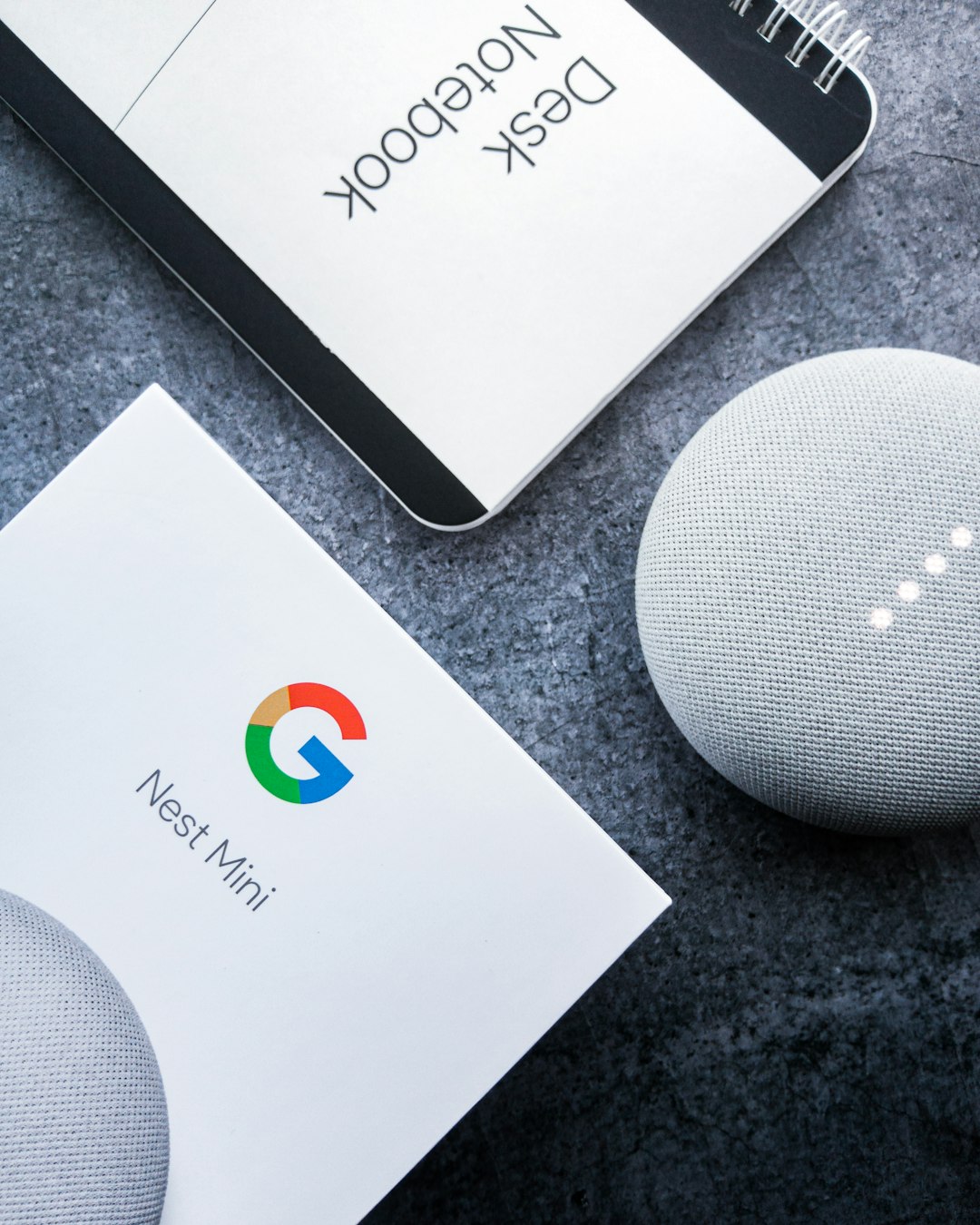
The Google Home Mini is a smart assistant designed to simplify your daily routine. From playing your favorite tunes to answering questions, controlling smart home devices, and creating reminders, it’s a truly versatile speaker. However, like any tech device, there may come a time when you need to start fresh—maybe you’re giving it to someone else or troubleshooting persistent issues. That’s where the factory reset comes in.
TL;DR (Too Long, Didn’t Read)
Resetting your Google Home Mini can help resolve connection issues, remove your data before gifting, or prepare it for selling. The process is quick and usually takes less than a minute. The method of resetting varies slightly depending on whether you have the 1st or 2nd generation device. Always ensure the device is plugged in before beginning the reset.
Why Consider a Factory Reset?
There are several reasons you might want— or need— to perform a factory reset on your Google Home Mini. Here’s a brief look at the most common scenarios:
- Troubleshooting: If the device is unresponsive or having persistent connectivity issues, resetting it can help bring it back to normal.
- Changing Ownership: Selling or giving away your Google Home Mini? A factory reset wipes out your personal data.
- Device Performance: Over time, the device might slow down or have glitches. A reset can refresh its system functionality.
It’s important to note that a factory reset erases all your personal settings, data, and linked accounts. The device will return to its out-of-the-box state, ready to be configured from scratch.
Identifying Your Google Home Mini Model
Before jumping into the steps, you’ll need to identify which model of Google Home Mini you have, as the reset methods are different between the first and second generations.
Here’s how to identify your model:
- 1st Gen Google Home Mini: Has a small round mute button on the bottom base of the device. No visible lights on the front unless it’s active.
- 2nd Gen Google Nest Mini: Sometimes referred to as Google Home Mini 2, it has a wall-mount notch and displays LED indicators when adjusting volume or during setup.
Still unsure? You can check the model on the box or through the Google Home app under device settings.

How to Factory Reset the 1st Generation Google Home Mini
If you’re using the original Google Home Mini (1st Gen), follow these steps to reset it:
- Make sure the device is plugged into a power source.
- Locate the factory reset button on the bottom of the device, right under the power cord input.
- Press and hold the button for about 15 seconds.
- You’ll hear an audio confirmation that the reset is in progress. When you hear a chime, release the button.
That’s it! After about a minute, the device will restart and be ready for initial setup. You’ll need the Google Home app to reconnect it to your Wi-Fi and Google account.
Factory Resetting the 2nd Gen Google Nest Mini
Unlike the 1st generation, the 2nd Gen—or Nest Mini—does not have a dedicated reset button. Instead, the reset process uses the physical microphone switch.
- Ensure the Nest Mini is plugged in and powered on.
- Slide the microphone switch on the side to the off position. The device’s lights will turn orange.
- Press and hold the center of the Google Nest Mini (right on the top fabric surface).
- Continue holding for about 15 seconds, until you hear the confirmation sound.
Just like that, your device will begin the reset process. Once it finishes, you can set it up again through the Google Home app.
Things to Remember Before Resetting
Before you take the plunge into resetting your device, keep the following in mind:
- Unlink your Google Account if you plan to dispose of or give away the device. Resetting does this automatically, but it’s always good to double-check via the app.
- Record Wi-Fi credentials or specific settings you may want to replicate afterward.
- Note that you’ll lose all voice match profiles, alarms, routines, and linked smart home services. These will require re-configuration during setup.
Troubleshooting After Reset
Sometimes, even after a successful reset, the Google Home Mini might not behave as expected. Here are some troubleshooting tips:
- Not showing up in the Google Home app? Make sure Bluetooth and location services are enabled on your phone or tablet.
- Connection issues? Try restarting your Wi-Fi router or move the Mini closer to the access point.
- No response after reset? Ensure that all steps were followed properly. If necessary, unplug and retry the reset process from the beginning.
Can You Reset from the Google Home App?
You might wonder if it’s possible to reset the device through the Google Home app. While you can perform many actions like unlinking accounts or renaming devices, a full factory reset must be done physically using the methods described above. Google does not currently provide an app-based method for a total factory reset.
Setting It Up Again
After a factory reset, your device returns to its original state, which means:
- You’ll hear the prompt: “Welcome to Google Home…”
- Open the Google Home app on your mobile device.
- Tap the “+” icon in the top-left corner and choose “Set up device.”
- Follow the on-screen prompts to connect it to your Wi-Fi and Google account.
Don’t forget to re-enable features like Voice Match, Google Assistant Routines, and smart device linking to get the most out of your Mini.
Final Thoughts
The Google Home Mini, whether 1st or 2nd Gen, is a compact powerhouse of convenience. However, knowing how to properly reset it is essential for solving technical issues or transitioning ownership. The process is intentionally designed to be straightforward but secure, preventing accidental resets while still being accessible when needed.
Factory resets are a normal part of a device’s lifecycle. Whether you’re resolving issues or starting fresh, the reset steps outlined above will help get your Google Home Mini back to working order in no time.
Happy resetting—and even happier smart assisting!