
IP settings tell your device how to identify itself on a network and how to reach everything else. If they are wrong, websites fail, printers vanish, file shares break, and remote access turns into guesswork. Windows and Linux both manage IP addresses, gateways, DNS servers, and subnet masks, but they present the job in very different ways.
TLDR: IP settings are the network identity card for your computer, phone, server, or virtual machine. On Windows, most users change them through Settings or Control Panel; on Linux, admins often use terminal tools or config files. For example, a small office with 25 PCs may use automatic IP assignment for staff laptops, but give the printer a fixed address like 192.168.1.50 so it never “disappears.” In practice, most home users need DHCP, while servers, routers, and shared devices usually need static IPs.
What IP Settings Actually Include
An IP address is the number assigned to a device on a network. It might look like 192.168.1.23 for IPv4 or something longer like 2001:db8::10 for IPv6. That address lets other devices know where to send data.
But IP settings are more than one number. A typical setup includes:
- IP address: The device’s unique address on the network.
- Subnet mask or prefix: Defines which addresses are local.
- Default gateway: Usually your router. It sends traffic outside the local network.
- DNS servers: Translate names like example.com into IP addresses.
- DHCP setting: Controls whether the address is automatic or manual.
Most people never see these details because DHCP handles them automatically. Your router gives your laptop an address, tells it which gateway to use, and provides DNS details. When it works, it feels invisible. When it fails, you suddenly become very aware of it.

Automatic vs Static IP Addresses
Automatic IP addressing is the normal choice for laptops, phones, tablets, and office desktops. The device asks the network for an address. The router or DHCP server replies with one. Simple.
Static IP addressing means you type the settings yourself. This is common for:
- Servers
- Network printers
- Security cameras
- NAS storage boxes
- Routers and firewalls
- Virtual machines used for testing
The catch is that static IPs are easy to get wrong. One typo in the gateway or DNS server can make a device look connected while the internet still refuses to work. Even worse, two devices can accidentally get the same address. That causes strange dropouts that feel random.
Configuring IP Addresses in Windows
Windows aims for a visual workflow. That helps casual users, but the path has changed often across versions. Honestly, it feels like Microsoft enjoys moving network settings just when people memorize where they are.
In modern Windows, you can usually change IP settings like this:
- Open Settings.
- Go to Network & Internet.
- Select Wi Fi or Ethernet.
- Open the active network connection.
- Find IP assignment.
- Choose Edit.
- Select Automatic DHCP or Manual.
If you choose manual, Windows asks for the IP address, subnet prefix length, gateway, and DNS servers. For a home network, a manual IPv4 setup might look like this:
- IP address: 192.168.1.40
- Subnet prefix length: 24
- Gateway: 192.168.1.1
- Preferred DNS: 1.1.1.1
- Alternate DNS: 8.8.8.8
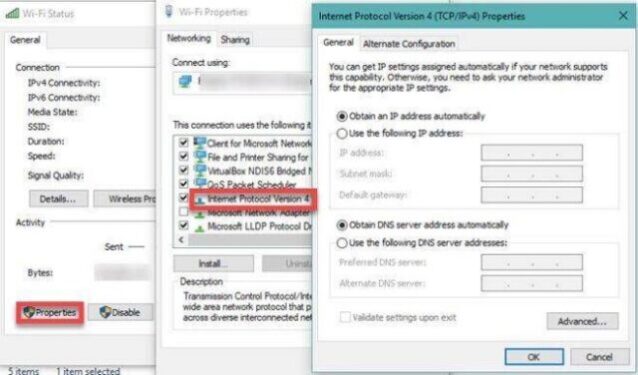
Windows still has the older Control Panel path too. Many admins prefer it because it is direct. You open Network Connections, right click the adapter, choose Properties, then edit Internet Protocol Version 4 TCP/IPv4. It looks dated, but it works.
There is also PowerShell. That is useful for scripts or remote work. Commands like Get-NetIPConfiguration show current settings. New-NetIPAddress can assign an address. Set-DnsClientServerAddress changes DNS. For one PC, the graphical tools are fine. For 100 PCs, PowerShell saves hours.
Configuring IP Addresses in Linux
Linux gives you more control, but that control can feel scattered. The exact method depends on the distribution, desktop environment, and network manager in use. A command that works on Ubuntu Server may not be the preferred method on Fedora Workstation.
For quick checks, most Linux systems use:
ip addrto show addressesip routeto show gateways and routesresolvectl statusorcat /etc/resolv.confto check DNSpingto test basic connectivity
Temporary IP changes can be made with the ip command. For example:
sudo ip addr add 192.168.1.60/24 dev eth0
sudo ip route add default via 192.168.1.1
These commands work fast, but they may not survive a reboot. For permanent settings, Linux uses configuration systems such as NetworkManager, Netplan, systemd networkd, or older interface files.

On Ubuntu Server, Netplan is common. A simple static configuration might live in /etc/netplan/01-netcfg.yaml. It can define the address, gateway, and DNS servers in a YAML file. After editing, you apply it with sudo netplan apply.
On desktop Linux, many users manage IP settings through a graphical network panel. NetworkManager also has a handy command line tool called nmcli. For example, nmcli connection show lists connections, while nmcli connection modify can set manual IPv4 details. It is powerful, but the syntax takes practice.
Windows vs Linux: The Real Difference
The biggest difference is not the IP address itself. IPv4 is IPv4. DNS is DNS. A gateway is still a gateway. The difference is the interface and philosophy.
- Windows: Easier for one machine. Good graphical tools. Strong PowerShell support. Settings may be split between old and new panels.
- Linux: Better for servers and automation. Many choices. Strong terminal tools. More variation between distributions.
Windows is usually faster for a home user who wants to change DNS or set a printer address. Linux is often better for admins managing servers, containers, and cloud systems. It drives me crazy that Linux can have three valid ways to set the same address, but that flexibility is also why admins like it.
Common IP Setting Mistakes
Most IP problems come from a few repeat offenders:
- Wrong subnet: A device on 192.168.0.50 may not reach devices on 192.168.1.x without routing.
- Bad gateway: Local network works, internet fails.
- Bad DNS: You can ping 8.8.8.8, but websites do not load by name.
- Duplicate IP: Two devices fight for the same address.
- Static address inside the DHCP pool: The router may assign that same address later.

Which One Should You Use?
Use DHCP for normal client devices. It is cleaner and safer. Use a static IP for devices that others must find at the same address every time.
If you use Windows, start with Settings, then use PowerShell when you need repeatable changes. If you use Linux, learn ip addr, ip route, and the main network tool for your distribution. That small skill set solves many problems.
Good IP settings are boring, and that is the goal. When they are right, the network fades into the background. When they are wrong, even a simple print job can waste 20 minutes. Set them carefully, document static addresses, and leave automatic addressing alone unless you have a good reason to change it.

Related Posts

D&D Character Makers Compared: 5 Tools for Building Characters, Managing Stats, and Planning Tabletop Campaigns

Cloudbot Alternatives: 4 Streaming Chatbot Tools for Moderation, Automated Responses, and Community Engagement
