

If you want apps on a Kindle, first check which Kindle you own: Fire tablets can install apps, while classic Kindle e-readers are built mainly for books. Amazon Fire tablets use the Amazon Appstore for downloads, updates, and purchases [source: Amazon]. That one difference saves a lot of tapping and confusion.
TLDR: If your device has a color screen and apps like Prime Video or Silk Browser, you probably have a Fire tablet and can install apps from the Amazon Appstore. If your device has an E Ink screen and is mostly black and white, it is a Kindle e-reader, so app options are very limited. For example, a student who reads 90 minutes a day and watches one 30-minute lecture at night should use a Fire tablet, not a basic Kindle. Expect setup to take about 5 to 10 minutes if your Amazon account and Wi-Fi are ready.
Know What Kind of Kindle You Have
The word Kindle gets used for two different product types, and that causes most of the trouble. A Kindle e-reader is made for reading. It has an E Ink screen, long battery life, and very few distractions. A Fire tablet, once called Kindle Fire, is closer to an Android tablet. It supports games, video apps, music apps, learning tools, and web browsing.
If you are staring at a Kindle Paperwhite waiting for Netflix to appear, stop now. It will not happen. Honestly, it feels like Amazon could make this clearer on the device itself, because many people waste ten minutes hunting through menus that were never built for app downloads.
- Kindle e-reader: Best for books, audiobooks on some models, notes, dictionaries, and simple web access.
- Fire tablet: Best for apps, games, streaming, email, web browsing, and reading.
- Kindle app: A separate reading app that runs on phones, tablets, and computers.

How to Find Apps on a Fire Tablet
On a Fire tablet, your main stop is the Amazon Appstore. It works much like the app store on a phone. You search, read reviews, check permissions, then install.
- Wake the tablet and connect it to Wi-Fi.
- Sign in with your Amazon account.
- Open Apps or Appstore from the home screen.
- Tap the search bar and type the app name.
- Select the app from the results.
- Tap Get, Download, or the price button.
- Wait for installation, then tap Open.
Some popular apps are already visible in categories such as Games, Entertainment, Education, and Productivity. If you are setting up a tablet for a child, check the age rating before installing anything. The bright icon and friendly name do not always tell the whole story.
How to Use Installed Apps
After an app installs, it appears on your home screen or in your app library. Tap it once to open it. Press the home button or swipe up, depending on your model, to leave the app.
Many apps ask for permissions the first time you open them. You might see requests for storage, microphone access, camera access, or location. Do not approve everything by habit. A weather app may need location. A calculator does not need your microphone. It drives me crazy that some simple apps still ask for too much access.
To move apps around, press and hold an app icon. You can often drag it to a new position or remove it from the home screen. Removing an icon is not always the same as uninstalling the app, so read the prompt before tapping.
What About Apps on Kindle E-Readers?
Classic Kindle e-readers do not use regular apps. Their software is focused on reading tools. You can buy books, open your library, use dictionaries, make highlights, create notes, adjust fonts, and sync reading progress. Some models also support Audible over Bluetooth.
You may see a simple web browser under experimental features or settings. It is useful for very basic pages, but it is not a real app platform. Expect slow loading, odd page layouts, and limited controls. A site that takes two seconds on your phone may feel painfully slow on E Ink.
Kindle e-readers may also include Goodreads features in some countries. That lets you track books, share progress, and see reading activity. Still, it is not the same as installing social apps or games.
How to Search Smarter in the Amazon Appstore
Search results can be messy. Use exact names when you can. Type “Spotify” instead of “music.” Type “Zoom” instead of “video meeting.” If the app does not appear, it may not be available for Fire tablets.
Before installing, check these details:
- Developer name: Make sure it matches the real company.
- Star rating: A 4.5 rating with 50,000 reviews means more than five perfect reviews.
- Last update: Old apps may crash or lack newer features.
- Permissions: Watch for odd requests.
- In-app purchases: Free apps can still cost money later.
Updating and Deleting Apps
Updates fix bugs and add features. They can also make apps larger, so storage matters. Fire tablets with 32 GB fill up faster than people expect, especially with games and video downloads.
To update apps, open the Appstore, then check your app updates from the account or menu area. You can also turn on automatic updates in settings. If an app keeps crashing, update it first. Then restart the tablet. That simple restart solves more problems than it should.
To delete an app, press and hold its icon, then choose Uninstall or Remove from Device. If you bought the app, it usually stays tied to your Amazon account, so you can reinstall it later. For account-based content, Amazon also lets you manage many digital items through your content and device settings [source: Amazon].
Using Parental Controls and Child Profiles
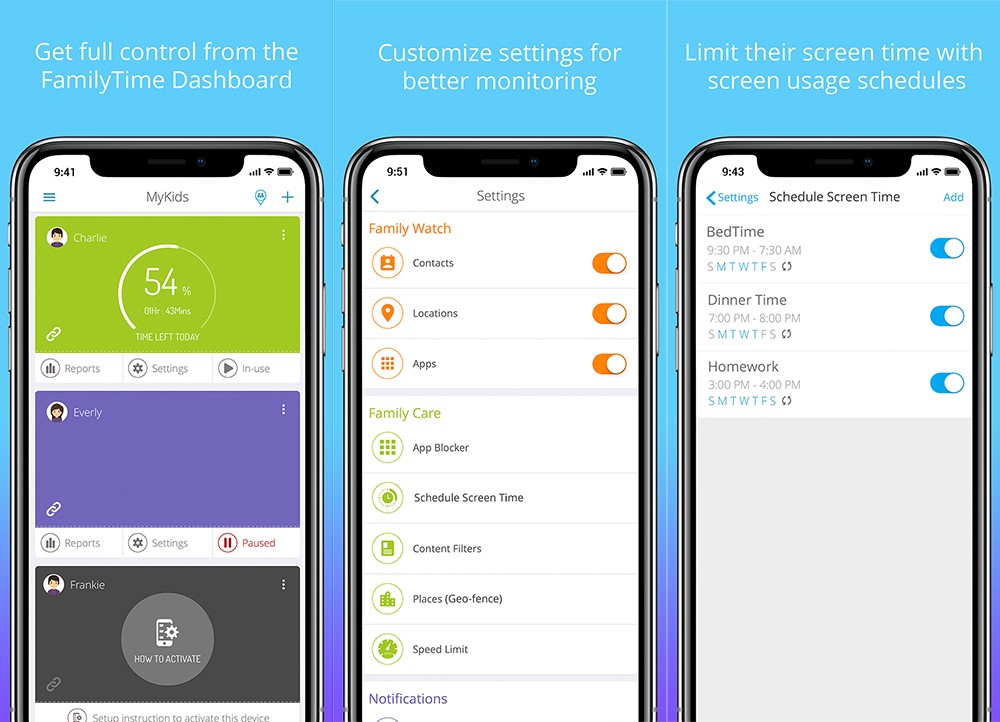
If the Kindle is for a child, set up controls before handing it over. Fire tablets include child profiles, screen time limits, content filters, and purchase restrictions. This matters because apps can include ads, chat features, subscriptions, and one-tap purchases.
A good setup might look like this:
- Weekday screen time: 45 minutes for games, unlimited reading.
- Age filter: Set to the child’s actual age, not above it.
- Purchases: Require a password every time.
- Web access: Allow only approved sites for younger children.
What to Do If an App Is Missing
Some big-name Android apps are not in the Amazon Appstore. YouTube, Gmail, and Google Maps may not appear the way they do on a standard Android tablet. Fire tablets use Amazon services first, not Google Play by default.
Some users install Google Play manually, but that is not supported in the same clean way as the built-in store. It can break after updates. It can also confuse less technical users. If you need Google apps every day for work or school, a regular Android tablet or iPad may be less annoying.
Best App Types for a Kindle Fire Tablet
Fire tablets are strongest when used for simple, everyday tasks. They are not power-user tablets, but they are great for reading, streaming, study, recipes, casual games, and kids’ content.
- Reading: Kindle, Audible, Libby, and comic apps.
- Streaming: Prime Video, Netflix, Disney+, and Hulu where available.
- Learning: language apps, math apps, flashcard tools, and school portals.
- Productivity: email, calendars, notes, and document viewers.
- Games: puzzle games, card games, kids’ games, and casual titles.
Quick Fixes When Apps Do Not Work
If an app freezes, will not open, or downloads too slowly, try the simple fixes first. Check Wi-Fi. Restart the tablet. Update the app. Clear storage space. Delete and reinstall the app if nothing else works.
Also check the date and time settings. Wrong time settings can stop sign-ins and video apps from working. It sounds silly, but it happens.
The best rule is simple: use a Fire tablet for apps and a Kindle e-reader for books. Once you know which device you have, finding apps becomes much easier. You will spend less time tapping through dead ends and more time reading, watching, studying, or playing.

Related Posts

D&D Character Makers Compared: 5 Tools for Building Characters, Managing Stats, and Planning Tabletop Campaigns

Cloudbot Alternatives: 4 Streaming Chatbot Tools for Moderation, Automated Responses, and Community Engagement
